


As players are exploring chunks and terraforming land to create their bases, some players, especially new players, may not know what everyone is actually building. Plus, when people ask where a specific build is, you’ll have to log in and guide them to the location every time.
Using a map plugin, such as BlueMap, you can create an interactive 3D map of your entire server world that is accessible everywhere on a browser, without needing to be in-game to access it. This is perfect for trying to locate anything across the server, including bases where the coordinates are forgotten.
In this guide, we will walk you through how to set up BlueMap for your server.
What is BlueMap?

BlueMap is a free plugin (or, if you use modded server software, a server-side mod) that creates an interactive 3D live map of your server world accessible directly through a web browser. You can zoom, pan, and rotate to look at the terrain and any builds from any angle. It also shows real-time locations and player skins as people move around the server.
Setting up an additional server port
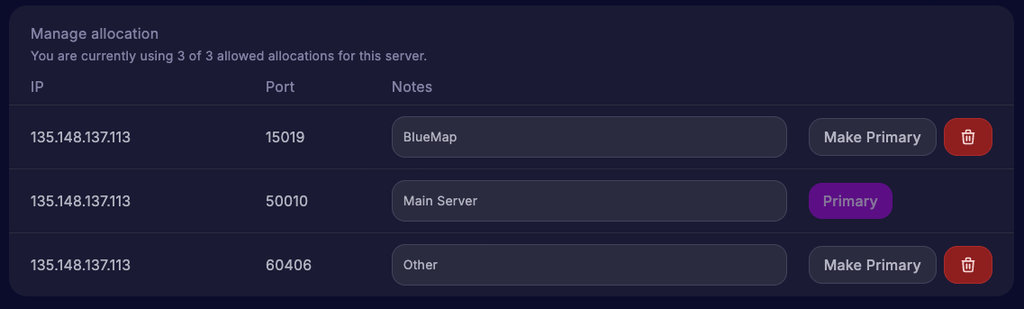
In order to use BlueMap, you’ll need to make sure you have an additional free port available for your server; otherwise, the web browser for seeing the map will not work.
Most hosting providers, such as Cybrancee, usually give one or two additional ports in addition to your main server port at no additional cost. However, this may vary from host to host.
For example, in Cybrancee, you can press the “Add Port” button to automatically create a port allocation. Copy the port and save it, as you’ll need it in a future step. Make sure you copy the new port you created and not your server port; otherwise, BlueMap will not work.
Also, the BlueMap plugin is compatible with most server software, such as Paper and Fabric software. However, we recommend using Paper.
How to Install BlueMap
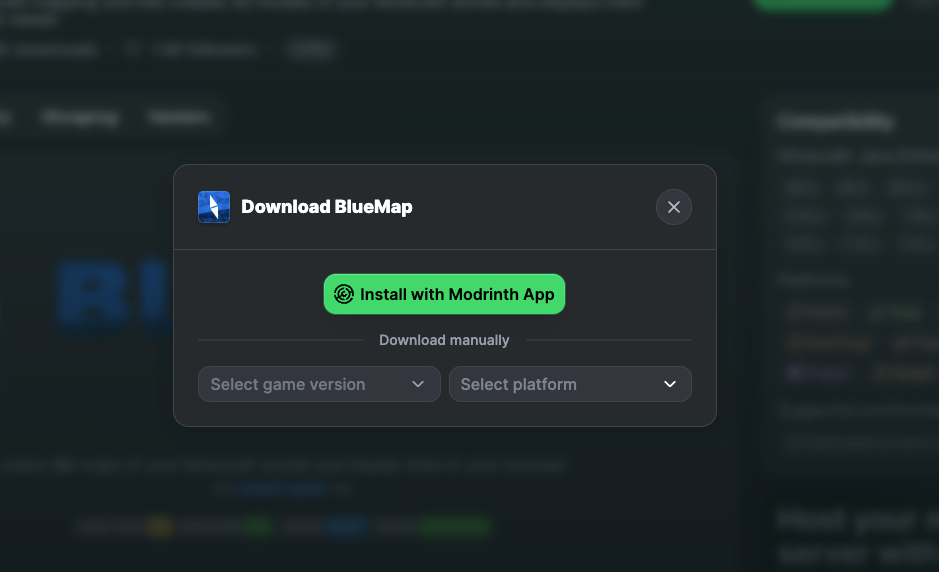
Step 1: You’ll need to download the BlueMap plugin JAR file for your specific Minecraft version. Head to the BlueMap Modrinth page and click Download. Make sure you select the correct server version and software to get the correct jar file. Once you download it, add it to either your /plugins or /mods folder, depending on your server software.
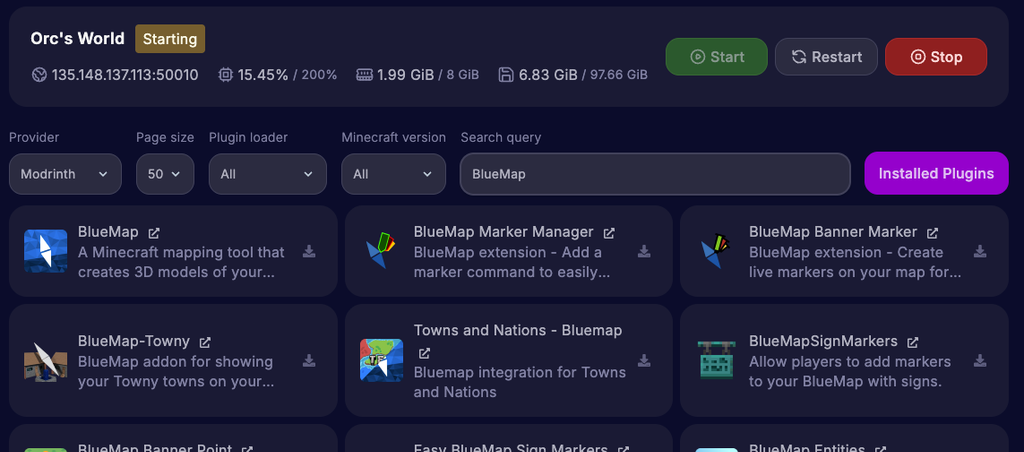
Some hosting providers, such as Cybrancee, have a one-click install directly in your server control panel. If that’s the case, go to your plugins tab, search for “BlueMap” and install it. It will automatically be added to your server’s plugins or mods folder, depending on your software.

Step 2: Restart your server and verify the plugin loaded correctly by monitoring the server console. You can also run /bluemap to confirm it is loaded.
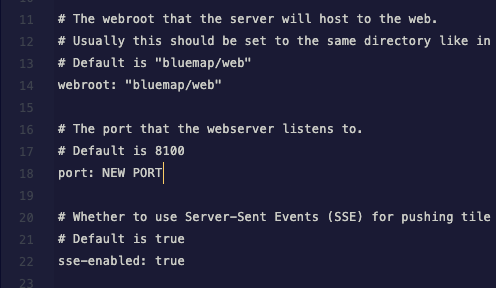
Step 3: Once BlueMap is loaded, you’ll need to go into the webserver.conf file. This is found in the BlueMap plugin folder. Replace the port value in the file with the one you created earlier. By default, this is set to 8100. Make sure it’s the one you recently created, not the server port
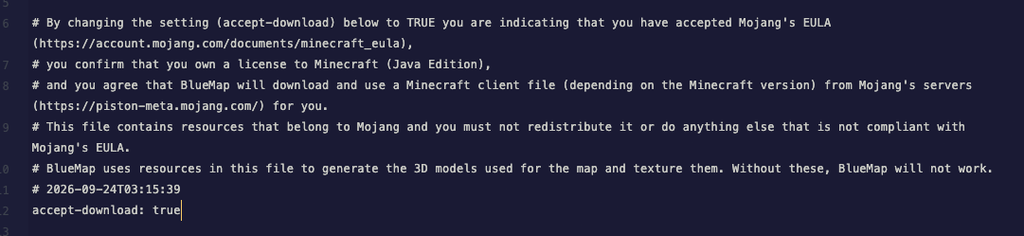
Step 4: In the same folder, find the core.conf file and change accept-download value from false to true.
Step 5: Restart your server one more time and monitor the console for any errors.
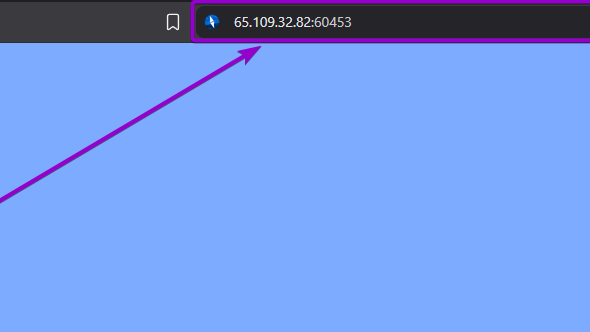
Step 6: Once your server is online, go to your browser and type your server’s IP address, followed by a colon “:”, and add the port you created earlier (for example: 123.45.67.89:25566). You’ll now see your Minecraft world in 3D in your browser.
Troubleshooting
The map is not loading at all: Double-check you are using the correct port and IP address on the website URL. Make sure the port is not your server port but the port you created in your server panel. If it’s the correct IP and port, check the webserver.conf file and double-check it’s using the correct port you created, not your server port or the default port generated by the plugin. Also, check that accept-download in core.conf is set to true. If it’s set to false, BlueMap won’t render anything.
The map loads, but shows a black or empty world: BlueMap is likely running, but the chunks haven’t rendered yet or are actively rendering them. It may take some time to generate maps. Usually this can take a couple of minutes, but for really large worlds, it can take multiple hours to finish generating. Make sure you monitor your server’s console for BlueMap messages in case there are errors. You can run /bluemap in-game or in the console to check on the status of the rendering.
Your map is taking forever to render: If your server has a really large world, this is normal. If you want to render faster, consider reducing the world size you want to map and remove any worlds you don’t need to render from the maps folder.
Configuration
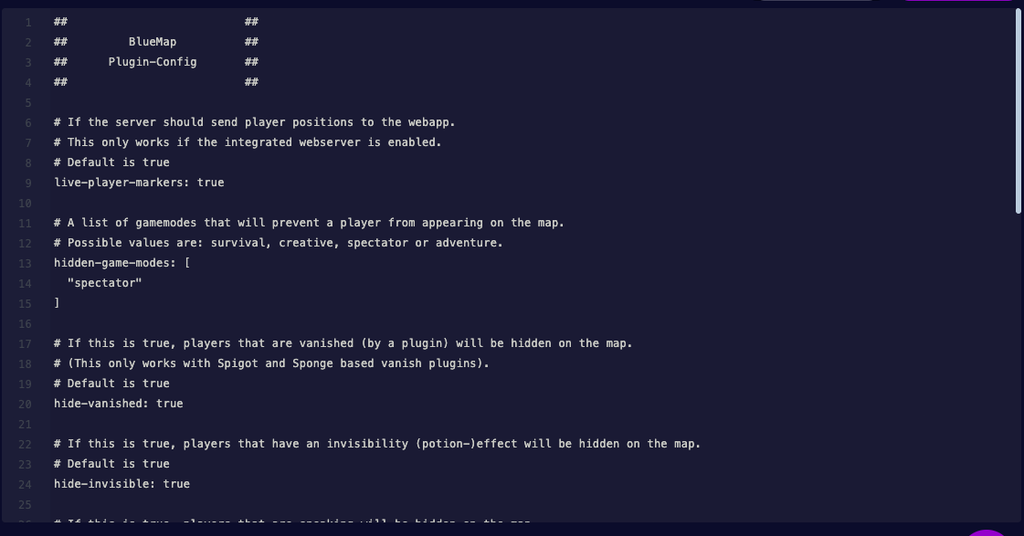
Once BlueMap is fully installed and working properly, you can change some of the properties within BlueMap to customize it to your server’s liking.
Rendering specific worlds: By default, BlueMap renders every world on your server, including the Nether and End dimensions. Each map has its own configuration file in the maps folder inside the BlueMap plugin folder. If you don’t want a specific world on your map, delete that file and run /bluemap reload. This will also help with render time as you’re only rendering the worlds you need.
Toggling player markers: Player markers show the real-time locations of who is online and where they are currently in the world. If you prefer this turned off to keep player privacy, there is an option to do so. Find live-player-markers in the plugin.conf file and set it to “false”. Optionally, you can also hide players in specific game modes, when they are sneaking, or when they are vanished or invisible in that same file.
Adjust render speed: The render-thread-count setting in the core.conf controls how many CPU threads BlueMap uses. The higher the value, the faster the rendering will take place; however, this may cause your server to lag more. It’s recommended to set this value between 2 and 4 to keep good server performance.
Add custom markers for key locations: You can create custom markers for specific locations on the map, such as the server spawn, shop, landmarks, and more. Markers are added in the marker-sets section of that world’s configuration file. A marker needs a type, position, and a label. Once you add all of those, it will show up on the map after running /bluemap reload or restarting your server.
Best practices when using BlueMap
Share the map link and post it somewhere easily accessible: Make sure you share the link with your community as soon as your map is ready. For example, if you have a community Discord server, make a pinned message or create a channel and post the link there.
Keep the map updated consistently: Make sure you review the server map every one to two weeks. BlueMap updates chunks automatically as players change and discover new chunks. However, sometimes BlueMap may not render areas or end up with missing tiles and visible seams. This is common after a server crash or a restart. If you see an error, run /bluemap update to re-render any changed chunks, or /bluemap fix-edges if the problem is along the border of a rendered area.
Freeze maps that don’t change: If you have a world that nobody builds in anymore, such as an event world, run /bluemap freeze [map ID] so BlueMap will stop checking that map for updates. This helps free up resources for the worlds people are actually using. If you want the map to start updating again, run /bluemap unfreeze [map ID].
Keep an eye on your storage: BlueMap saves every rendered tile to your server’s storage, and on a large world the map files can take up several gigabytes. Some hosting plans may have limited disk space, so make sure you check the size of your BlueMap folder. If you no longer need a world on your map, delete the configuration file in the maps folder and run /bluemap reload. Then, run /bluemap purge [map ID] to delete the rendered data. Luckily, if you use Cybrancee’s Minecraft Server Hosting, you get unlimited storage on your server, so there is no need to worry about server storage.
Useful BlueMap Commands
These commands are the ones you will most likely use often. Note that these commands require operator status or the permission node if you use a permissions plugin like LuckPerms.
/bluemap: Shows the current render status and progress.
/bluemap reload: Reloads BlueMap’s configuration files. Run this command after editing a configuration file for the changes to take effect.
/bluemap maps: Lists every map BlueMap has loaded, along with the ID of each map.
/bluemap stop: Pauses the rendering of all maps on the server.
/bluemap start: Resumes the rendering of all maps on the server.
/bluemap update: Re-renders any chunks that have changed.
/bluemap freeze [map ID]: Stops all updates for a specific map.
/bluemap unfreeze [map ID]: Resumes all updates for a specific map.
/bluemap purge [map ID]: Deletes all rendered data for a map.
/bluemap troubleshoot: Checks your setup for common problems, and if any are found, it will give you ways to fix those problems.
Frequently Asked Questions
Do players need to install anything to see the map? No. Anyone with the link can open the map in any modern web browser on a computer or phone. Running Minecraft or downloading a mod is not required to see the map.
Does BlueMap work on modded servers? Yes. BlueMap has versions for Paper, Fabric, Forge, NeoForge, and other server software. Note that BlueMap might not be able to parse all blocks and resources for a mod.
Could you customize the URL of your map website? Yes, but it does require you to have a domain purchased. Cybrancee offers domains at a reasonable yearly fee. To customize the URL, you’ll need to add an “A” record in your domain’s DNS settings. Use your server’s IP address and add a subdomain. We recommend using “map” as the subdomain. Once you edit the DNS records, it may take from a couple of minutes to 24 hours for the URL to be usable. Players can then visit the map at map.yourdomain.com followed by “:” and your BlueMap port. Note that the port is still required, since an A record only replaces the IP address. If you want to remove the port from the map URL, you’ll need to set up a reverse proxy. You can learn more in BlueMap’s official guide.
Can other players see my base on the map? Yes. Anyone with the map link can see every rendered build on your server, including player bases. If you don’t want that, you can turn off player markers so players can’t be tracked in real time or limit the rendered area by changing the min and max coordinates in each world’s configuration file.
Summary
BlueMap turns your Minecraft world into a 3D interactive map that anyone can open and use in a web browser.
To set it up, create an extra port in your server panel and install the BlueMap plugin or mod. Then set the port in webserver.conf and change the accept download setting to true in core.conf. Finally, restart your server, and you’ll be good to go.
If you want a Minecraft server for your friends or family, or a public server to grow your community, choose Cybrancee’s Minecraft Server Hosting. Cybrancee offers exceptional hosting with a generous 90-day money-back guarantee.
Happy Gaming!