

If you’ve completed Terraria a couple of times already and wished there was even more to explore and fight, you’re not alone. That’s why tModLoader is here to help you customize and enhance your experience with thousands of different mods for you to try, especially after you’re done with the vanilla version of the game.
We all know that Terraria is already packed with a lot of content, but mods allow players to expand their experience even more, how they want it. Whether you’re looking for a complete overhaul, new bosses, new items, new classes, or some quality-of-life improvements, with tModLoader you can make it happen.
For the first time, setting up a modded server sounds complicated, but it isn’t like that; the process is fairly straightforward. In this guide, you’ll learn what tModLoader is and what its purpose is, how to install it, add mods, and configure your server, along with some tips and common problems to make sure everything works right.
What Is tModLoader?
tModLoader is Terraria’s official modification framework, designed to make installing, managing, and playing with mods way easier and accessible for anyone who uses it.
Available as a separate application through Steam, it provides the tools needed to load community mods into the game without permanently modifying the base game.
If you’re looking for the greatest experience out of your server, you can safely pair tModLoader with tShock, a server and administration tool with features like anti-cheat, anti-grief, player management, and much more.
You can easily find out more about tModLoader and tShock, what their purpose is, the advantages and disadvantages of each one, and more information about them in our blog on tModLoader vs TShock: What’s the Difference?.
Install tModLoader
Installing tModLoader is the first step toward creating a modded server. Back in the day, mods were introduced to the server by downloading them separately and involved manual editing of game files. Nowadays, modding is fully automated thanks to tModLoader, making installing and configuring every mod easy and user-friendly.
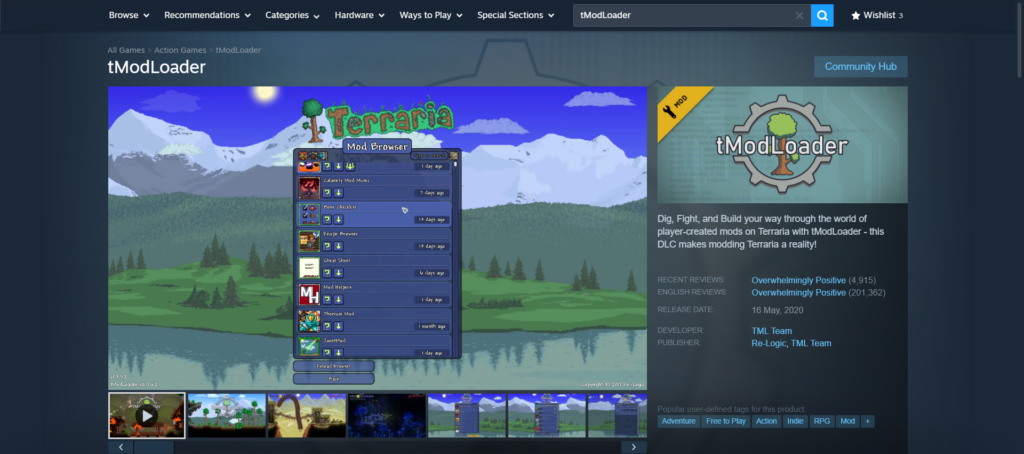
tModLoader has been officially available for download via Steam since May 2020, when Re-Logic listened to the community and decided to partner up with the tModLoader team, making everything official.
When you’ve installed tModLoader, make sure to open it once before starting your server. This will allow the app to create the folders and files that will be used to manage your mods.
From there, you can browse and install mods directly through the built-in Steam Workshop.
Whether you’re looking for massive overhauls like Calamity, or simple quality-of-life improvements like Magic Storage or Boss Checklist, with tModLoader you’re guaranteed to find what you’re after.
Choose Your Mods
This is why tModLoader is loved by the community, because it makes installing mods easier and accessible for everyone using it. With built-in integration with the Steam Workshop, players can browse, download, update, and manage thousands of community mods without editing game files manually, all from the same interface.
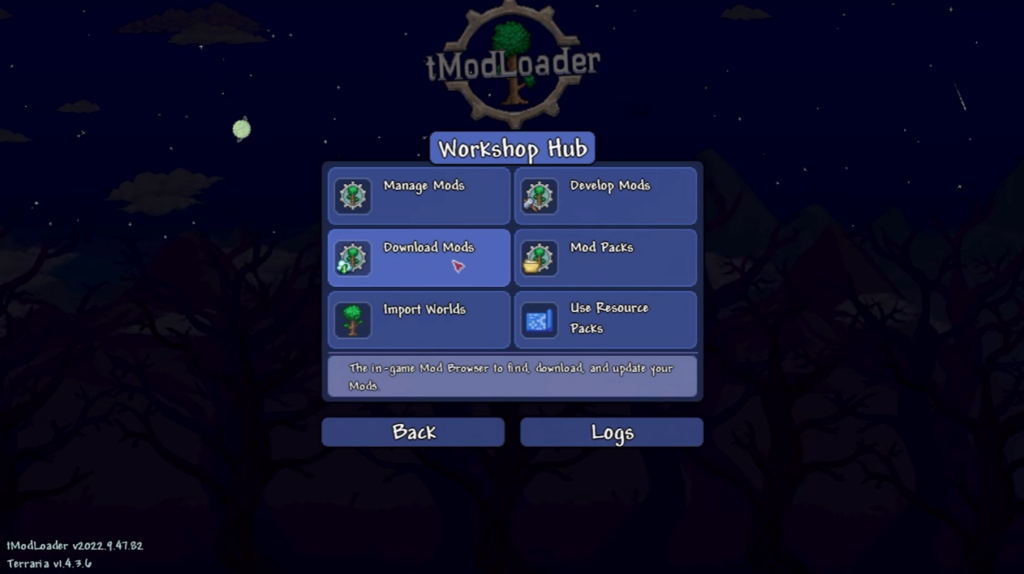
To install a mod, simply open tModLoader, navigate to the Workshop section from the main menu, and enter the Mod Browser, where you can browse or search for the mods you’re looking for and simply download them with a single click. Once you’ve done that, launch your game and make sure to enable the mods you want to use before creating or joining a server.
When you’re setting up a modded multiplayer server, it’s very important to remember that every player must have the same mods installed, including their versions. If a player is missing a mod or uses an outdated version, he won’t be able to join the server until he fixes the issue, so it’s worth double-checking before joining.
Set Up Your World
Now that you’ve installed tModLoader on your computer and you’ve chosen your mods, you need to create your Terraria world. Before actually starting your adventure, you need to plan all your settings, including world size, difficulty, and much more.
The game lets you choose between Small, Medium, and Large world sizes. Always make sure you select the right size based on how many players are going to play on your server, or other needs.
You’ll also need to select a difficulty that should match your group’s preferred playstyle. The game offers Classic, Expert, Master, and Journey difficulties, each one providing a different level of challenge and unique mechanics.
If you want to go further with it, you can start with a chosen world seed. There are multiple special world seeds and secret world seeds that will modify core mechanics, add a new difficulty called “Legendary Mode”, and even add new progression paths. If you want to know more about these world seeds and choose one for your new server, read our The Best Terraria World Seeds for Fresh Servers in 2026 blog.
Configure Your Terraria Server
After you’ve made an idea of how your world will be generated and how hard the progression will be, it’s time to configure your Terraria server itself. For a great overall experience out of your server, these are the most important settings to keep an eye on:
- Maximum Players: You’ll need to plan and decide how many players will join your server at the same time to avoid problems regarding this situation. Allowing more players on your server than necessary will increase CPU and RAM usage, especially if you’re using large modpacks on your server, so make sure your server has enough resources to handle your expected player count.
- Server Password: A password will be necessary if you want to keep your server private and allow only invited players to join. If your multiplayer server is not password protected, you’ll often get unwanted players joining your server, which can lead to griefing or other problems.
- Server Port: This is the communication port or digital doorway used by your server to allow players to connect to a multiplayer server using both TCP and UDP protocols. The default Terraria port is 7777, but it can be changed if needed. If the correct port value isn’t open or forwarded (for self-hosted servers), players won’t be able to join your server at all.
- Backups: It is very recommended that you keep this enabled to make sure your world’s progress is saved automatically. Keeping this disabled increases the risk of losing progress if the server unexpectedly crashes or shuts down.
Here at Cybrancee, most of these settings can be configured directly through a single-interface control panel, making everything accessible and reliable rather than configuring your server files manually. Our Terraria Server Hosting Plans are built to support both vanilla and modded servers, with instant server setup, DDoS protection, high-end hardware, global server locations, and much more. Starting now at just 3.99$/month.
Launch Your Server
Now that you’ve configured everything on your Terraria server and the mods are ready, you can safely launch your server. When you start tModLoader, it will automatically load the mods. This process might take longer depending on the number and size of your installed mods.
Once you have launched the server and everything is working, you should test it out yourself to make sure every mod loaded correctly and is working as it should. This will let you see that the server is running correctly before other players join, to avoid any problems.
Even if you encounter any problems, you can easily start or restart your server through the hosting control panel we provide. This all-in-one panel makes everything easier to access and manage with an AI companion for instant answers, scheduled backups to keep your world safe, and a real-time performance overview.
Tips For a Stable Terraria Server
Every owner wants their server to be stable and reliable; here are some of the best tips for long-term stability and best performance out of your server:
- Make Sure Everyone Uses the Same Mods: One of the most common issues players encounter when joining a modded server is version mismatch. Always make sure everyone has the same mods installed, especially that they are up to date.
- Install Mods Gradually: Instead of installing dozens of mods and enabling all of them, install a few mods at a time and test them in your server after each addition. This makes it much easier to identify compatibility problems if two or more mods don’t work with each other.
- Back Up Your World: Every time before installing new mods or updating their version, make sure you create a backup of your world. If an update malfunctions and comes with bugs and file corruption, you’ll be able to restore your progress easily without starting over.
- Avoid Too Many Overhauls: Large overhaul mods customize your entire Terraria experience. Combining too many overhauls can create balance issues, file conflicts, and multiple bugs. The best way is to choose one single overhaul mod and make it better with some quality-of-life mods.
- Monitor Server Performance: As your mod list grows, so do your server’s hardware requirements. Always make sure you choose a hosting plan from your provider that fulfills your server and modpack requirements. If you end up noticing lag, long loading times, and crashes, reduce your mod usage or upgrade the server’s resources.
Common Problems and How to Fix Them
Even with a normally running server and everything configured carefully, problems can occur at any time when setting up a modded server. The great part is that most of them are mediocre problems that are very easy to identify and fix; here are some of them:
- Players Can’t Join the Server: This problem can be caused by multiple factors, but the most common in this case is that the players trying to join the server are using different or outdated versions of Terraria, tModLoader, or installed mods. You can simply fix this problem and prevent it by double-checking that everyone uses the same versions and that they’re up to date.
- Server Crash During Startup: Imagine you just configured your server and it crashes out of the blue. This is generally caused by a mod conflict or an incompatibility. There’s an easy fix to this issue: disable the recently added mods, restart the server, and add them back one at a time until you find the faulty mod or other problems.
- Poor Performance: When you enable multiple large content mods on your server, this will have an impact on your performance because it increases CPU and memory usage. Removing unnecessary mods, restarting the server regularly, or upgrading your server resources will solve the problem.
- Long Loading Times: Although it might fall into the same category as poor performance, you can have long loading times but have favorable in-game performance. This usually happens because of large content mods naturally taking longer to load than vanilla Terraria. You can resolve this just by being patient during startup and avoiding installing more mods than you’ll actually use. However, if the loading takes a very long time, you should reconsider your modpack.
- Missing Content or Desync: If you or your players see missing items, NPCs, or just experience desynchronization, the server and client installations may not match as they should. Ensure that every player has the same mods enabled and the same versions, then safely restart both the server and the game itself.
Summary
Setting up tModLoader on a Terraria server is easier than it seems. You install tModLoader through Steam, select your mods using the Mod Browser, set up your world, configure your server, and that’s it; you’re done.
If you’re looking forward to playing with your friends or creating a public multiplayer server, make sure everyone is using the same mod versions. After that, you’re ready to start your adventure and enjoy your mods without any issues.
The key to a stable modded server is choosing a few compatible mods, not too many, as it can easily decrease performance if they’re not necessary, keeping everything updated, and regularly creating some backups of your world. Taking your time to configure your Terraria server will help you prevent long-term problems.
Even if you encounter some problems, they are easy to identify and resolve. Most of them are caused by mod and version mismatch, large modpacks on a low-end server, or incompatible mods.