


If you see your server spawn as a giant void, the server crashes every time someone walks towards a build or structure, or the server console is flooded with errors about chunks not loading or not working, your Minecraft world might be corrupted. A Minecraft world corruption is one of the most stressful problems a server owner can run into, but it doesn’t automatically mean your world is gone for good. In most cases, you can bring back most or all of it.
In this guide, we’ll cover what world corruption actually is, the most common causes of world corruption, how to spot it, and multiple methods to recover your world. We’ll also show you how to prevent world corruption from happening again.
What is a corrupted Minecraft world?
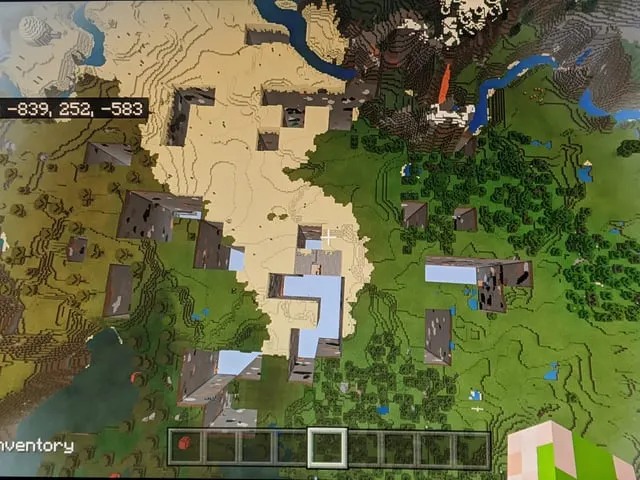
A Minecraft world consists of a folder that holds multiple files such as level data (world settings and seed), terrain, builds, player data, and all three dimensions. A world gets corrupted when one or more of those files is either truncated, deleted, altered incorrectly, or holds incorrect information.
The most common causes of world corruption
There are many causes for why your world can become corrupted, but here are the most common causes.
- Force-closing your server: As you play, Minecraft is constantly reading and writing chunk data to your server. If your server crashes or you kill the server as it’s stopping, it’s likely Minecraft was in the middle of writing a chunk file and causes the file to be incomplete and unreadable.
- Running out of storage space: If you run out of storage while Minecraft is trying to save a chunk, the save operation will fail, and the file ends up incomplete. This is most common on servers with large worlds.
- Improper world editing: If you use tools such as MCEdit, Amulet, or NBTExplorer to modify your world, you can potentially corrupt it if the tools are used incorrectly or if you modify the world while the server is running at the same time.
- Upgrading versions: When converting a world from an older version of Minecraft to a newer version, it can sometimes cause corruption. If Minecraft fails to convert an old chunk’s data correctly, it can produce errors or visual glitches, causing world corruption.
- Mods and/or plugins: Mods and plugins that interact with the world data (especially ones that add custom blocks, entities, and/or data) can corrupt a world if they’re removed without properly cleaning up their data.
- Downgrading versions: This is a more serious corruption, as older versions cannot read new data from a newer version. In most cases, it can cause terrain and chunks to be wiped or deleted.
Signs that your world may be corrupted
The most common signs of world corruption include:
- Crashing in a specific area: If the server crashes or players get kicked whenever they walk toward one spot, there’s likely a corrupted chunk in that area.
- Void chunks: Void chunks are chunks that load in empty space with no terrain. This usually means Minecraft couldn’t read that chunk’s data.
- Missing items or inventories: If a player’s inventory resets or items vanish from chests, their player data or the chunk holding those chests may be corrupted.
- Region file errors: Console messages mentioning .mca files or “Couldn’t load chunk” directly point to corrupted terrain data.
- NBT parse failures: These errors mean Minecraft found a file it couldn’t read. These are often level.dat or a player data file.
Recovering a corrupted world
It is possible to recover a corrupted Minecraft world, but it is not guaranteed. Here are some methods to recover a corrupted world.
Prior to trying the methods listed below, stop your server and make a full copy of your world folder. Either download it to your computer or put it in a separate folder on your server.
Method 1: Restore from a backup
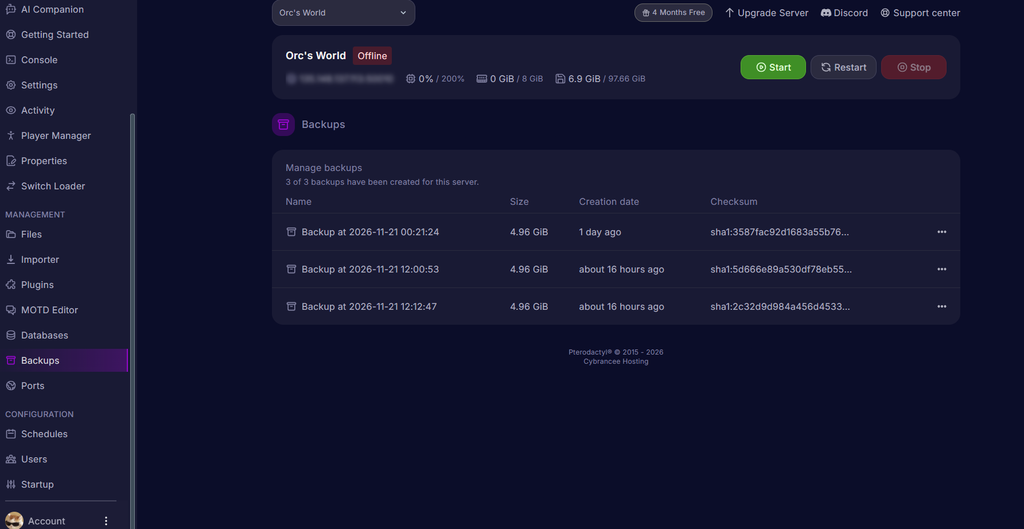
If you have a backup from before the corruption started, you can restore the backup. This is the easiest and safest fix.
In the Cybrancee server control panel, you can easily restore a backup by going to the backups tab and finding your most recent backup prior to the corruption. Once you find it, click on “Restore” and select the option “Delete all files before restoring a backup”. Selecting this option will help prevent duplicate files. Once you click “Restore”, it may take a couple of minutes for your server to be fully restored.
A downside to restoring from a backup is that any progress after that backup will be lost. For example, if your last backup is over a week old, a week of progress is lost.
Method 2: Repair your level data file
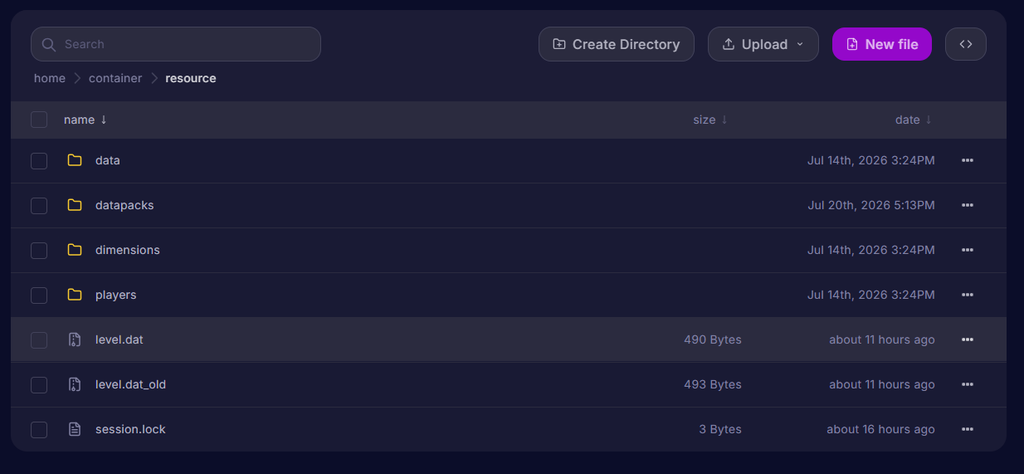
If your server crashes on startup, or the world loads with the wrong seed, spawn point, or game rules, your level data file is probably the issue. The level data file is called level.dat, and both an old and current file can be found in your world folder. Minecraft automatically keeps a backup of this file called level.dat_old. To fix the startup problem, you can switch to the older file. Here’s how to do this:
Step 1: Open your world folder and look for the level.dat and level.dat_old files.
Step 2: Rename level.dat to level.dat_broken
Step 3: Rename level.dat_old to level.dat
Step 4: Start the server
You can also use the same trick for a single player whose inventory or position is not correct or broken. Look in the playerdata folder for their UUID’s data file and swap it with its .dat_old backup using the trick above.
Method 3: Find and remove corrupted chunks
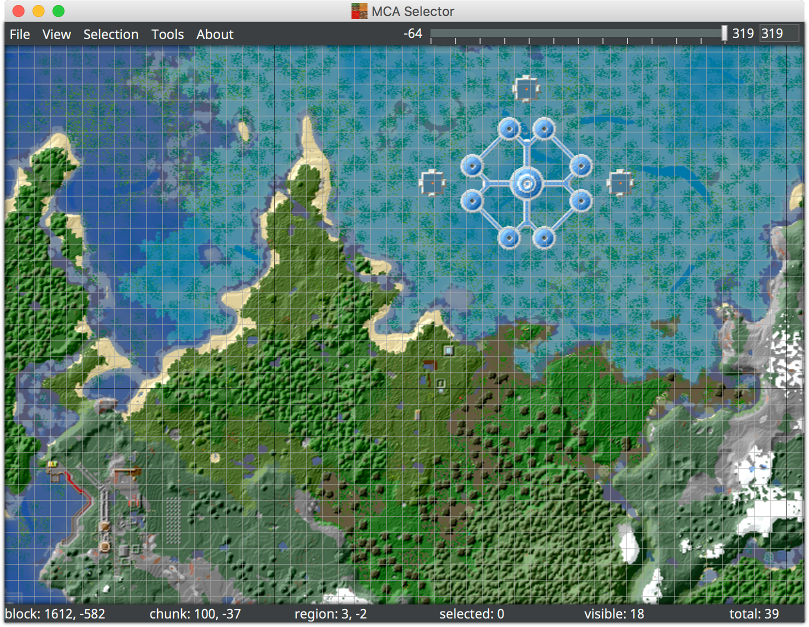
If the crashes only happen in one area or you see lots of void chunks, a broken region file is most likely the cause. You’ll want to identify the file and delete the affected chunks. You can delete the affected chunks by deleting the region file or using an external tool, such as MCA Selector, to find the affected chunks. MCA Selector is a tool to view, select, delete, and export chunks from a Minecraft world.
Step 1: Look through your latest console log and find errors such as “Couldn’t load chunk,” which usually includes the chunk’s coordinates. Note those coordinates.
Step 2: Go to your world folder and find the region folder. You should see files named like r.0.-1.mca. Each file holds a 32×32 area of chunks (512×512 blocks).
Step 3: To find the affected file, divide the chunk coordinates you found by 32 and round down. For example, chunk (40, -10) is in r.1.-1.mca. If you only have the affected block coordinates, first divide both coordinates by 16 and round down. Then divide by 32 and round down.
Once you have located the file, you have two options. You can either delete the entire file or use an external tool to delete only the affected chunk.
If you delete the entire file, Minecraft will regenerate that area from the seed the next time someone visits it. This is a quick solution, but anything in the 512×512 area will be lost. If you use an external tool, such as MCA Selector, you can delete only the damaged chunks while keeping everything within that region unaffected. This solution requires more work, but it’s better for those who don’t want to delete the entire region file if there is a build nearby that you don’t want to be deleted.
If you use MCA Selector to delete the affected chunks, open the world in MCA Selector and hold Shift to select the affected chunks and delete them. Verify that the chunks you have selected are the ones you want deleted, as once you delete the chunks, you cannot undo them. After deleting them, upload the edited world back to your server and start the server. Watch the server console for any errors.
Method 4: Fix Version and Mod Problems
If the corruption started right after an update, you’ll want to upgrade the whole world at once instead of letting chunks upgrade one by one as players explore. To do this, add the –forceUpgrade flag to your server’s startup command. After doing this, the server will convert every chunk and upgrade it before it’s active. This process may take a bit, especially for larger worlds. Once the upgrade finishes, remove the flag from your startup command, so the server doesn’t repeat this process every time on startup.
If the corruption started right after you removed a mod, there might have been blocks and items from that mod in-game that haven’t been removed when you uninstalled the mod. To fix this, reinstall the mod and remove or replace the mod’s blocks and items, and then uninstall the mod.
If the above methods don’t work
If none of the methods above work, then it’s likely the damaged areas may be unrecoverable. You can still save part of the world by using MCA Selector from Method 3 to copy the unaffected chunks into a fresh world, upload it to your server, then rebuild what was lost.
Preventing world corruption
Most world corruption can be prevented. Here are a couple of ways to help prevent world corruption:
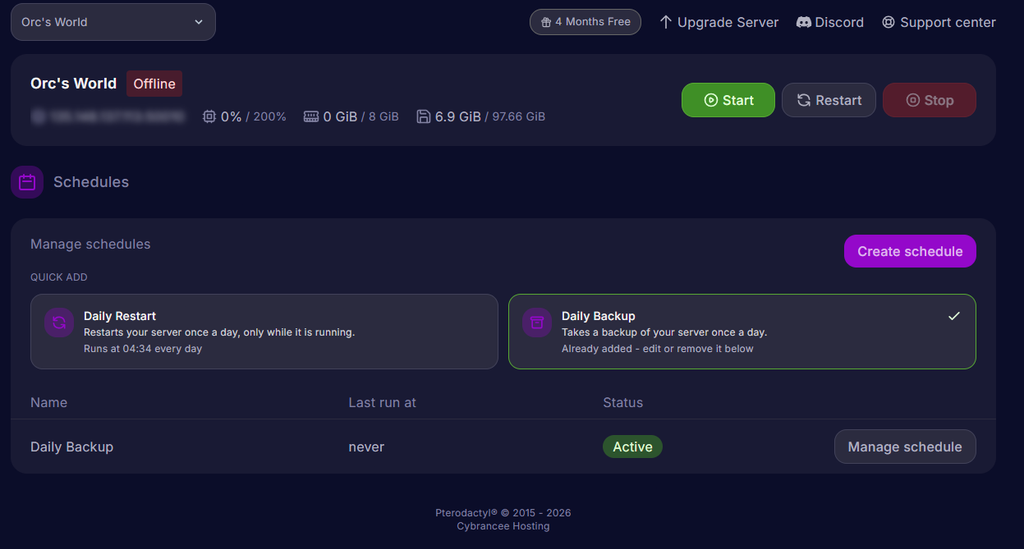
Regularly back up your server: Set up an automatic backup within your server panel; this way you’re not relying on remembering to make one. In Cybrancee’s server control panel, you can easily do this by creating a daily backup schedule under the Quick Add.
Stopping your server properly: Use the /stop command or the stop button in the control panel instead of killing your server. This will give Minecraft time to finish saving all chunks before it shuts down.
Keeping an eye on your storage: As players explore, your server files will grow. Keep track of your available storage, and either request an increase in storage size or remove old files (such as log files).
Never edit a world while it is currently running: If you use tools like MCA Selector, Amulet, or NBTExplorer, stop the server first. Editing files that Minecraft is actively writing to can corrupt your world.
Test updates on a copy of the world first: Before updating your server to a new Minecraft version, make a copy of your world and test the update on it. This way, if something doesn’t work, your real world isn’t affected.
Never downgrade your world: Once a world has opened on a newer version, don’t load it on an older version. If you need to go back, restore a backup from before the update.
Remove mods and plugins carefully: Before uninstalling a mod that adds blocks or items, remove those blocks and items from your world first.
Summary
A corrupted world is one of the most frustrating things that can happen to a server, but it’s possible to recover the world. The most common causes of your world becoming corrupted are force-closing your server, running out of storage, editing a live world, changing versions, or removing mods incorrectly.
To recover your world, depending on the problem, you can restore a backup if one is available, switch the level data file or a player data file with Minecraft’s automatic backup, remove corrupted regions or chunks by deleting the region file or using MCA Selector to remove the broken chunks, add –forceUpgrade to your server startup flags, and remove blocks and items from a mod before uninstalling.
Make sure you schedule regular backups (by using Cybrancee’s schedule tool), stop your server properly by not killing it, and test updates on a copy of your world first.
If you want a Minecraft server for your friends, or a public server to grow your community, choose Cybrancee’s Minecraft Server Hosting. Cybrancee offers exceptional hosting with a generous 90-day money-back guarantee.
Happy Gaming!