



A server crash, a bad plugin update, world corruption, or an accidental world reset can cause you to lose your world progress, which is one of the most frustrating things for a server owner. Without a backup, that progress is gone for good, and you won’t be able to recover anything.
To prevent losing hours of progress, you need to regularly back up your server. A backup gives you a restore point you can return to if something goes wrong. However, manually backing up your server is easy to forget. If you forget and something goes wrong, you can lose more progress or even all of it. Setting up automatic backups will make sure your server is backed up, even when you are away from your computer.
In this blog, we will walk you through why you should back up your server, how to set up scheduled backups, and how to manage them.
What is a server backup?
A Minecraft server backup is a copy of your server’s files, including the worlds, player data, plugin or mod configurations, and other server settings.
Reasons to back up your server
Crash or failed updates: A server crash or a failed update to a new Minecraft version can potentially corrupt your world files. Plugins that are built for an old version can also throw errors that can cause the plugin to stop working completely, chunks to stop generating and saving correctly, or crash your server. Restoring from a recent backup gets your server running again instead of rebuilding from scratch.
Griefing: Even with active moderators, players could grief bases, steal items, or destroy builds before you catch them, especially during non-active hours when moderators are not active. A backup lets you restore your world to the state it was in before the damage happened, so no one has to rebuild everything again.
Testing changes: Installing a new plugin or changing a configuration file could cause your server to behave in unexpected ways or break your server completely. For example, a single wrong value or two plugins that don’t work well together can stop the server from running. Having a backup ensures no permanent damage, as you can restore the server before changes were made.
When should I backup my server?
It is recommended to back up your server once every 24 hours. If you run a public server or have higher player counts, it’s recommended to back it up every four to six hours.
Setting up automatic backups
Creating an automatic backup will allow your server to save its files on a set schedule without you having to remember to do it manually.
To create automatic backups, we will use Cybrancee’s schedules tool. A schedule is a set of tasks that run automatically at a time and interval that you define. You can chain multiple tasks together, such as running a command and restarting the server. It’s also possible to add timer delays between actions if it’s needed.
How to Create Automatic Backups by creating a schedule
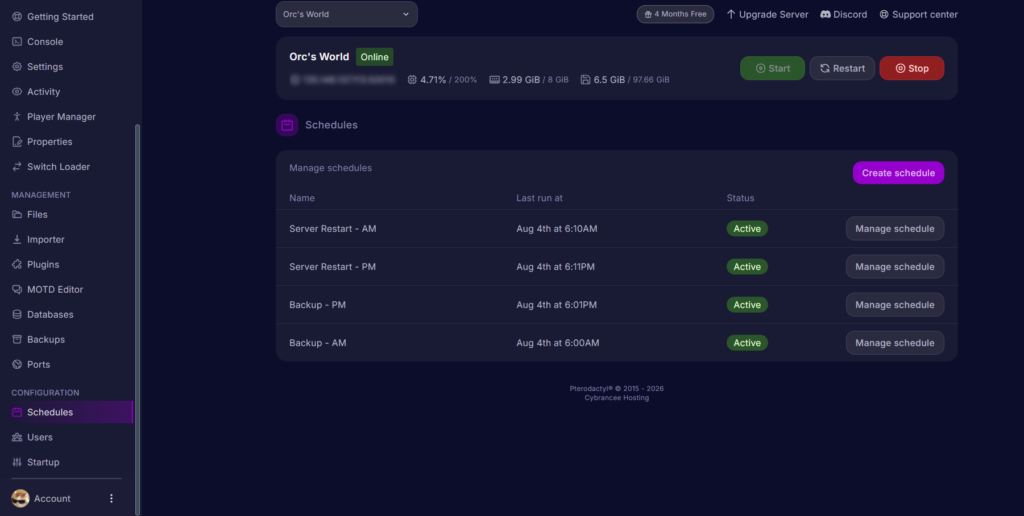
Step 1: Go to your server panel and click on the Schedules tab. Click on “Create Schedule”.
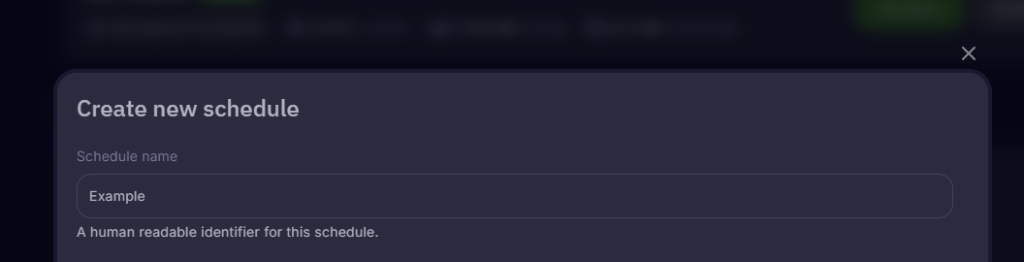
Step 2: Type a name for your schedule. Make sure you pick a name that is recognizable in case you need to edit your schedule after creation.
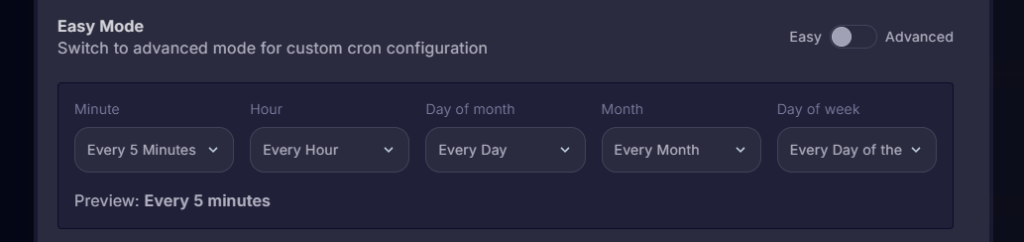
Step 3: You’ll now need to set the interval at which you want your server to be backed up. For example, if you want to restart your server at midnight every day, set “Minute” to “Once” and set “Hour” to “Every Day at Midnight”.
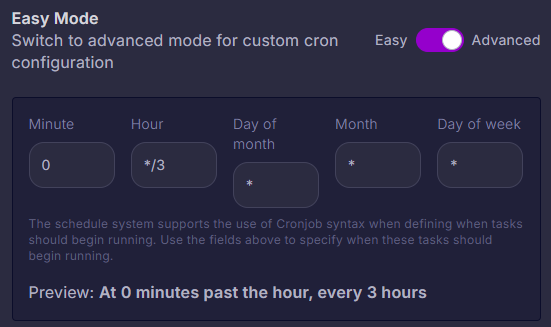
If you want to set a more specific time or interval to back up your server, such as backing up every three hours, switch the mode to advanced. This will allow you to edit the cron job syntax directly for more precise control. Note in the cron job syntax that the “*” means “every” and “/” with a number right after means the increments. So, for example, if you have day of the month, month, and the day of the week as “*” while the minute is set as 0 and the hour set as “*/3”, it will run every three hours.
However, for most server owners, easy mode has enough options.
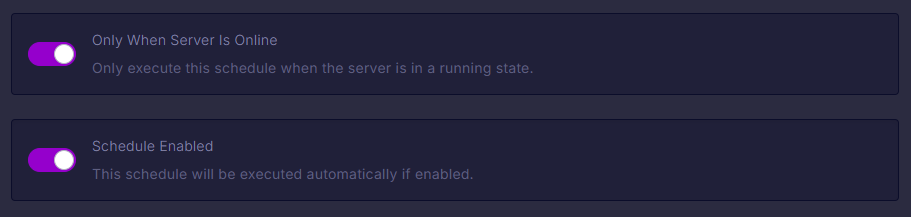
Step 4: Make sure you enabled the schedule, and turn on “Only When Server Is Online.” This will prevent backups from being made while it’s offline, as no data changes are happening.
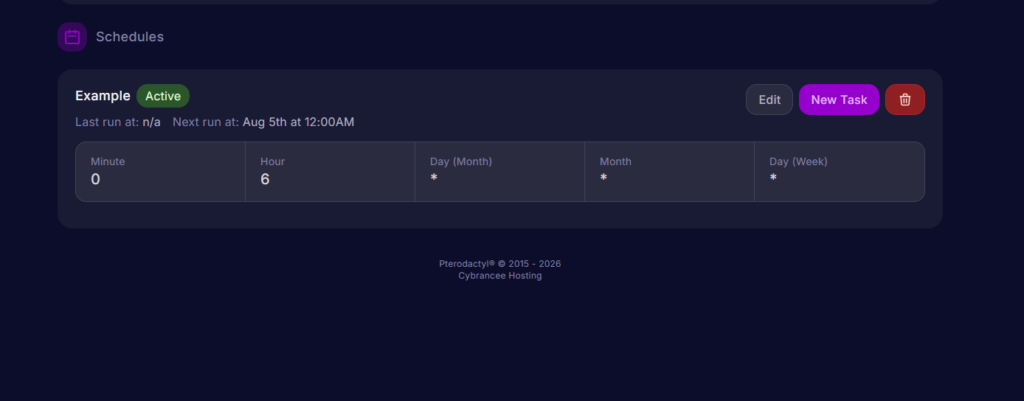
Step 5: Create your schedule and open your new schedule. You’ll now need to add a new task by clicking the “New Task” button.
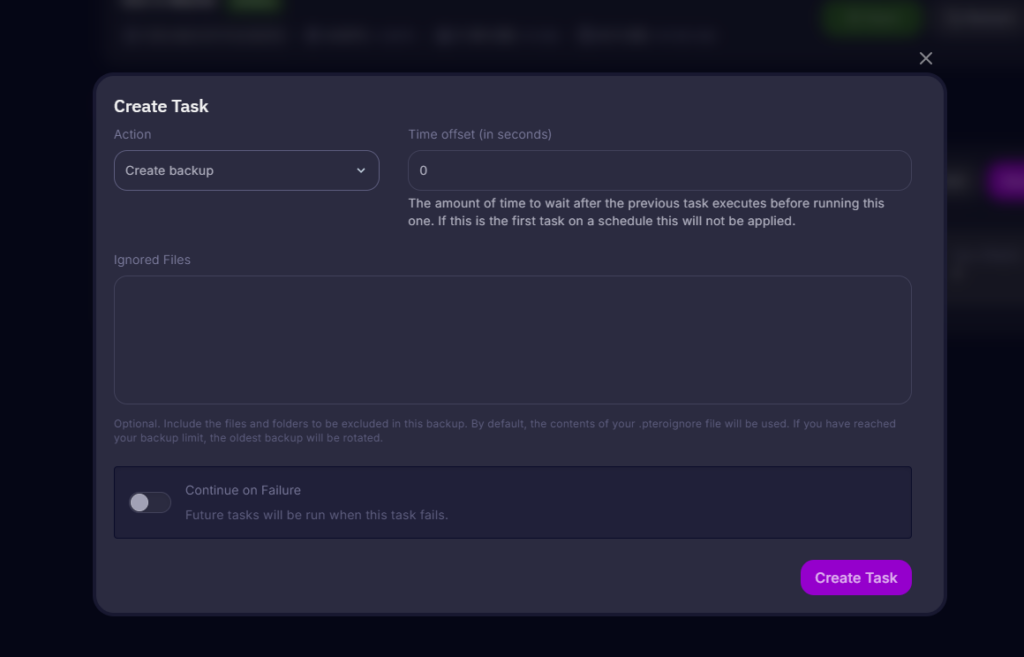
Step 6: In the Create Task screen, change the action to “Create backup” and then click the Create Task button. If you want to exclude certain files from the backup, add them in the ignored files box. You may want to exclude certain log files (such as Minecraft’s log files) as they aren’t necessarily needed in a server backup.
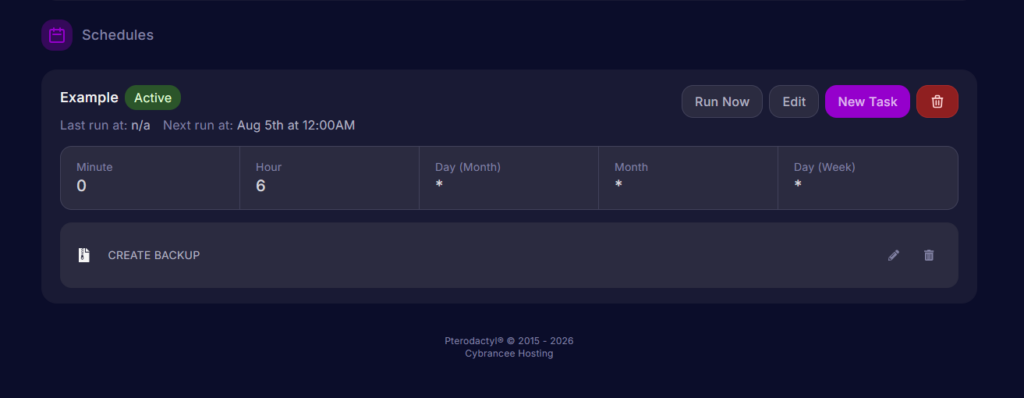
You have now created an automatic backup for your Minecraft server.
Warning: You only have three backup slots on your server. If you have filled all three backup slots when the schedule runs, your oldest backup will be overridden unless you lock the backup. If all three backup slots are locked, your schedule will fail.
Where can I find my server backups?
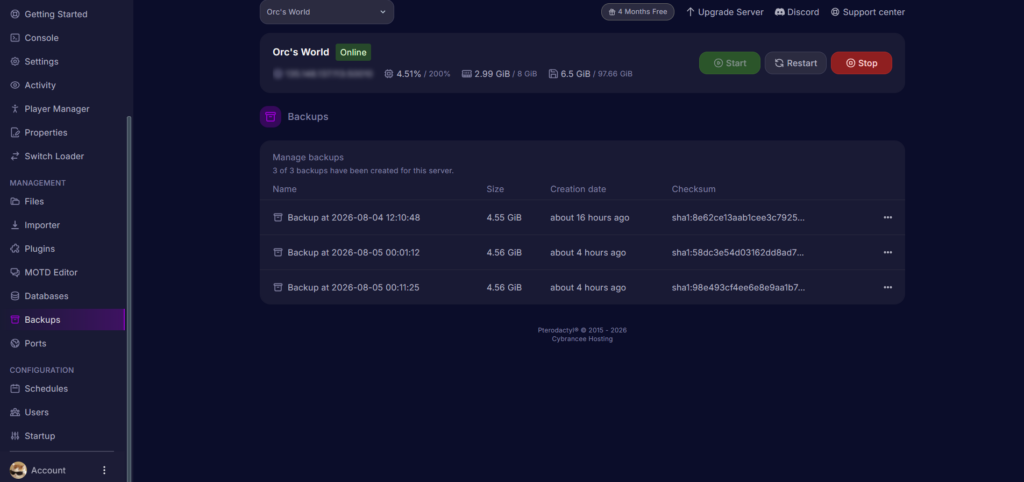
You can find your server backups in the backups tab of the server panel.
In this tab, you can see each of your backups, including the file size and when it was created. You can also create a manual backup here if you would like.
For each backup, you can also download it to your computer, restore it, lock it, or delete it.
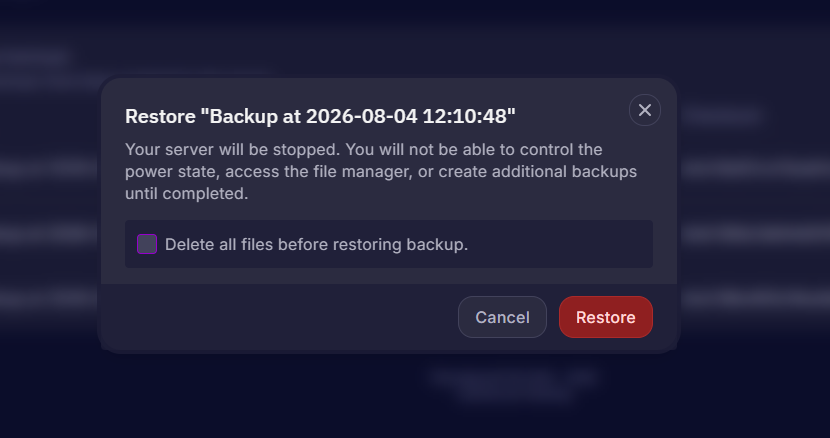
Restoring a backup will stop your server and temporarily prevent you from accessing the file manager and the backups tab while it restores the files from the backup. You also have the option to delete the current server files before restoring them. This is useful to prevent potential duplicate files or other errors when restoring a server from a previous state.
If you choose to restore a backup, everyone will be disconnected and will not be able to rejoin until the backup is restored and the server turns on again. For a small world, this usually takes a couple of minutes to restore, but larger worlds will take longer to restore. It is highly recommended to notify players ahead of time when you plan to restore a server backup and to restore it during a time when there is little to no activity.
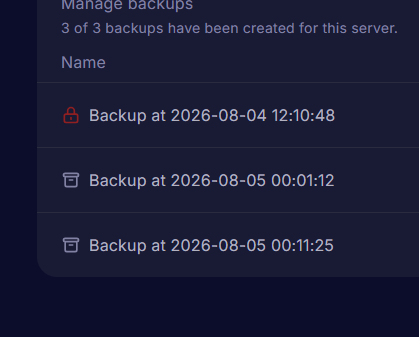
Locking a backup will prevent the files from being deleted accidentally or automatically with the scheduling tool. You will still be able to download or restore the backup when it’s locked.
Best practices for backing up your server
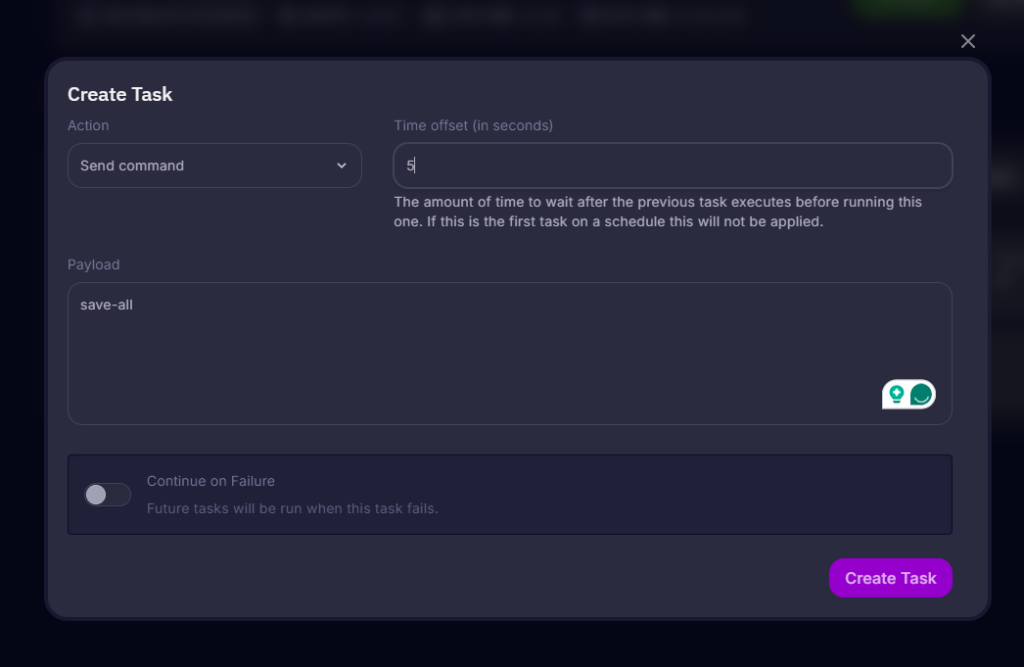
Run /save-all before backing up: Minecraft doesn’t write every change to the server instantly, as it sits in memory and flushes to the disk during the server’s normal autosave cycle. If your scheduled backup runs between autosaves, it may capture a version of the world that misses the last few minutes of player activity. Players could lose progress they thought was already saved. Running /save-all forces an immediate write, so the backup captures the current state. You can add the /save-all command before running a server backup in your schedule by adding a new task and adding “save-all” in the textbox while having “Send Command” selected. Make sure to set the time offset to around five seconds so the write has time to finish before the backup begins.
Schedule backups during low-traffic hours: Backups can cause a brief performance dip while files are compressed. Running backups during low-traffic hours, such as 3 AM, for example, will minimize performance issues while players are actively online.
Lock backups before major changes: Before installing a new plugin, updating Minecraft versions, or making any important changes, lock your most recent backup. This protects it from being overridden or accidentally deleted if something goes wrong and you need multiple attempts to recover.
Frequently Asked Questions
How many backups can I have at once on a Cybrancee server?
You have three backups per server. Once all three are full, the oldest unlocked backup is automatically overwritten the next time the automatic backup schedule is run. If all three backups are locked, the schedule will fail. If you want to keep a specific backup permanently, lock it so it’s excluded from rotation.
Do automatic backups slow down my server?
It could cause a brief performance dip while the files are being compressed, which is only noticeable for a couple of seconds. It’s recommended to schedule your backups during low-traffic hours, such as early morning, to help minimize the impact on active players.
Can I edit or delete a schedule after creating it?
Yes. Go to the schedules tab, select the schedule you want to change, and click the edit button to adjust the timing of your schedule. You can also delete your schedule, which, if done, would delete all tasks associated with it.
Why did my server backup fail?
Check to see if all three of your server backups are used and locked. If that is the case, your maximum backup limit has been reached, and the system cannot delete the oldest copy to make room for the new backup. Unlock one backup to keep automatic backups going.
Can I temporarily turn off automatic backups?
Yes, but it’s not recommended in case something goes wrong. If you want to turn off automatic backups, go to your schedule and disable the schedule in the schedule settings.
How long does a backup take to complete?
This depends on your world size and file count. If you have lots of files and a large world, the backup may take longer to complete as it needs time to compress all the files. However, if you have fewer files and a smaller world, the backup should not take long to complete.
Summary
Having a recent backup will help you restore progress in case of an unexpected crash, bad updates, or if someone griefs your server. Using Cybrancee’s scheduling tool, you can create automatic backups.
With the schedule tool, create a schedule, set how often it should run, and when it should run. Then, create a task in the schedule and set it to create a backup. Once you have added the task, the schedule will run on its own in the background.
Within your Backups tab, you can run a manual backup, download backups to your computer, lock backups so they aren’t accidentally or automatically deleted, restore from a server backup, or delete them from the Backups tab.
It is highly recommended to schedule backups during low-traffic hours to avoid brief performance dips associated with file compression.
If you want a Minecraft server that includes server backups at no additional cost, choose Cybrancee’s Minecraft Server Hosting. Cybrancee offers exceptional hosting with a generous 90-day money-back guarantee.
Happy Gaming!