
-
Minecraft
-
- How to Allowlist a Minecraft Bedrock server
- How to Enable Cheats on a Minecraft Bedrock Server
- How to Upload and Use a Custom Map on a Minecraft Server
- How to Disable the Minecraft Server Watchdog
- How to Join a Bedrock Minecraft Server on Xbox
- How to Connect a Domain (Cloudflare) to a Minecraft Server
- How to Connect a Domain to a Minecraft Server
- How to See Your Additional Minecraft Ports
- How to Download Your Minecraft World
- How to Change the MOTD of Your Minecraft Server
- How to Set a Custom World Seed on Your Minecraft Server
- How to Allow Cracked Versions of Minecraft to Join Your Server
- How to Create a Flat World in Minecraft
- How to Increase/Decrease the Player Slots in Minecraft
- How to Change the View Distance on Your Minecraft Server
- How to Agree to Your Minecraft Server's EULA
- How to Change Your Minecraft Server Version
- How to Change Minecraft Servers Player Slots
- How to Automatically Restart Your Minecraft Server
- How to Configure RCON on Your Minecraft Server
- Which Version of Java For Your Minecraft Version
- Minecraft Loaders Explained: Forge, Vanilla, Fabric, Paper, Bedrock, NeoForge
- How to Upload Your Minecraft World
- How to Enable Experiments on Minecraft Bedrock
- How to Configure Autosaving in Minecraft
- How to Reset Your Minecraft World
- How to Change the Tick Rate on a Minecraft Server
- How to Move Your Realms World to a Minecraft Server
- How to Change the Mob Spawn Rate on a Minecraft Server
- How To Setup Whitelisting on Your Minecraft Server
- How to Reset World Statistics on Your Minecraft Server
- How to Transfer Single Player Minecraft Server to Dedicated
- How to Find and Read Minecraft Crash Logs
- How to Upload an Existing Bedrock World to Your Minecraft Server
- How To Transfer a Single Player World to Your Minecraft Server
- How To Install the Pixelmon Modpack on Your Minecraft Server
- How To Reset a Player’s Data on Your Minecraft Server
- How To Filter Messages on Your Minecraft Server Console
- How to Change the Server Icon on Your Minecraft Server
- How To Trim Your Minecraft World Using WorldBorder
- How To Allow Bedrock Breaking, TNT Duping, and Other Exploits in PaperMC Servers
- How To Install Paper Plugins on Your Minecraft Fabric Server
- How To Change Your Minecraft Server Icon
- How To Change the Game Mode to Hardcore on Your Minecraft Server
- How To Create a Hardcore World on Your Minecraft Server
- How To Set Up Automated Broadcast Messages on Your Minecraft Server
- How To Force a Resource Pack on Your Minecraft Server
- How To Install Datapacks on Your Minecraft Server
- Show all articles ( 33 ) Collapse Articles
-
- How to Change the Simulation Distance on Your Minecraft Server
- How to Disable Player Advancement Announcements on Minecraft
- How to Set Up a World Border on Minecraft
- How to Disabled/Enable Creeper Explosions in Minecraft
- How to Disabled/Enable TNT in Minecraft
- How to Disable/Enable Fire Spread on Minecraft
- How to Disable the Nether in Minecraft
- How To Enable Command Blocks in Your Minecraft Server
- How to Configure or Disable Spawn Protection for Your Server
- How to Kick a Player in Minecraft
- How to Change Your Minecraft Server Gamemode
- How to View the banlist in Minecraft
- How to Ban and Unban a Player on Your Minecraft Server
- How to Change the Difficulty in Minecraft
- How to Change the Weather in Minecraft
- How to Change the Daylight Cycle in Minecraft
- How to Enable Flying on Your Minecraft Server
- How to Set a World Server Spawn on Your Minecraft Server
- How to Disable the End in Minecraft
- How to make a player OP (Operator) in Minecraft
- How to Give Your Minecraft Client More RAM
- How to Set a World Server Spawn Location in Minecraft
- How To Enable Coordinates on Your Minecraft Server
- How to Use NBTExplorer to Edit Minecraft World Data
- How To Edit Your Player Data
- How to Find a User’s SteamID
- Every Minecraft Cheat Command
- Show all articles ( 12 ) Collapse Articles
-
- How to Improve the Performance of Your Minecraft Server
- How to Reduce RAM Usage on Your Minecraft Server
- How to See Your Ping in Minecraft
- How to Generate a Spark Report
- How To Fix Rubberbanding on a Minecraft Server
- How To Create a Timings Report on Your Minecraft Server
- How To Analyze a Timings Report
- How To Optimize the paper.yml File To Reduce Lag
- How To Optimize the spigot.yml File To Reduce Lag
- How To Trim Your Minecraft World Using WorldBorder
- How To Check the Network Status of a Minecraft Server
- How to Disable Anti-Xray on Your Minecraft Server to Save RAM
- How To Reduce Mob Spawning on Your Minecraft Server
-
- How to Upload Mods to Your Minecraft Server
- How to Change Your Minecraft Server Forge Version
- How to Install GeyserMC on Your Minecraft Server
- How to Upload Forge Modpacks to Your Minecraft Server
- How to Update Modpacks on Your Minecraft Server, Using SFTP
- How to Update Modpacks on Your Minecraft Server
- How to Change The Fabric Version on Your Minecraft Server
- How to Add Simple Voice Chat to Your Minecraft Server
- How to Export Your Modpack to Curseforge
- How to Export Your Modpack to Modrinth
- How to Install 'All the Mods 10' on Your Minecraft Server
- How to Install ‘1.12.2 Pack’ on Your Minecraft Server
- How to Install 'All the Mods 9' on Your Minecraft Server
- How to Install 'SkyFactory' on Your Minecraft Server
- How to Add Addons to Your Minecraft Bedrock Server
- How To Set Up and Run RLCraft on Your Minecraft Server
- How to Install 'Feed The Beast' on Your Minecraft Server
- How to Install ‘Dawncraft’ on Your Minecraft Server
- How to Install MC Eternal on Your Minecraft Server
- How to Install 'FTB Evolution' on Your Minecraft Server
- How to Install and Use Resource Packs on Your Minecraft Server
- How to Read a Spark Report of Your Minecraft Server
- How to Upload Minecraft Plugins (Paper)
- How to Install Prominence II: Hasturian Era on Your Minecraft Server
- How to Use Chunk Generators in Minecraft
- How to Install Better MC on Your Minecraft Server
- How To Export a MultiMC Instance
- How To Create Instances in MultiMC
- How To Install Paper Plugins on Your Minecraft Fabric Server
- How To Set Up a Vote Notification System on Your Minecraft Server
- How To Link Your Discord Server to Your Minecraft Server
- How To Set Up BlueMap on Your Minecraft Server
- How To Install the Cobblemon Modpack on Your Minecraft Server
- How To Install and Set Up an Anti-Cheat (GrimAC) on Your Minecraft Server
- How To Install and Use CoreProtect on Your Minecraft Server (RollBack Griefing)
- How To Get a Live Map for Your Minecraft Server (Dynmap)
- How To Install LuckPerms on Your Minecraft Server
- How to Set Up TAB (Playerlist/Scoreboard) and PlaceholderAPI on Your Minecraft Server
- How to Lock Chests, Doors, and Furnaces on Your Minecraft Server
- How To Set Up Player Playtime Tracking on Your Minecraft Server
- How to Set Up Automated Cloud Backups to Google Drive (DriveBackupV2)
- How to Create a Reward Crate System on Your Minecraft Server (CrazyCrates)
- How to Add Custom Enchantments to Your Minecraft Server (ExcellentEnchants)
- How to Create Holographic Text at Your Server Spawn on Your Minecraft Server (DecentHolograms)
- How to Set Up a Skyblock on Your Minecraft Server (BentoBox)
- How to Let Players Chop Down Entire Trees Instantly on Your Minecraft Server (Timber)
- How to Allow Multiple Client Versions to Join Your Minecraft Server
- How to Link Your Minecraft Chat to Discord (DiscordSRV)
- How to Set Up a Player Bounty System on Your Minecraft Server (BetterBounty)
- How to Set Up an Economy System on Your Minecraft Server (EssentialsX and Vault)
- How to Automatically Clear Dropped Items to Reduce Lag (ClearLag) in Minecraft
- How to Restore Player Skins on Your Cracked Minecraft Server (SkinRestorer)
- How to Add Custom Name Tags and Colours on Your Minecraft Server (NametagEditX)
- How to Set Up a Login Password System for Your Minecraft Server (AuthMe Reloaded)
- How to Add Player Jobs to Your Server (Jobs Reborn)
- How to Let Players Sit, Crawl, and Lie Down on Your Minecraft Server (GSit)
- How to Automatically Sort Player Chests on Your Minecraft Server (ChestSort)
- How to Allow Players to Mine Spawners with Silk Touch on Your Minecraft Server (SilkSpawners)
- How to Filter Bad Language and Spam from Your Chat (ChatControl)
- How to Automatically Replant Crops When Harvesting on Your Minecraft Server (AutoReplant)
- How to Block VPNs, Proxies, and Alt Accounts on Your Minecraft Server (FoxGate AntiVPN)
- How to Create Custom Bosses and Monsters on Your Minecraft Server (MythicMobs)
- How to Install and Use WorldEdit on Your Minecraft Server
- How to Create Multiple Worlds on One Server (Multiverse-Core)
- How to Use WorldEdit on Your Minecraft Server
- Show all articles ( 50 ) Collapse Articles
-
- How to Fix: java.lang.NumberFormatException: For input string: "default" in Minecraft Paper
- How to Fix the Getsockopt Error in Minecraft
- How to fix 'Unknown host' Error in Minecraft
- What Different Join Errors Mean When Joining a Minecraft Server
- How To Fix the ‘The Authentication Servers Are Currently Not Reachable’ Error on a Minecraft Server
- How to Fix the 'Failed to Login: Null' Error on a Minecraft Server
- How to Fix the 'Timed Out' Error on a Minecraft Server
- How to Fix the 'Invalid Session' Error on a Minecraft Server
- How to Fix 'Failed to Verify Username' Error on Your Minecraft Server
- How to Fix the 'Java.net.SocketException' Error on a Minecraft Server
- How To Fix the ‘Chat Disabled Due to Missing Profile Public Key’ Error on Your Minecraft Server
-
Hytale
- How to Change the Server Name on Your Hytale Server
- How to Check Your Hytale Server Logs for Errors
- How to Set Scheduled Restarts For Your Hytale Server
- How To Install Mods on Your Hytale Server
- How To Reinstall Your Hytale Server
- How to Enable or Disable the Server Whitelist on Your Hytale Server
- How To Add an Admin/Operator to Your Hytale Server
- How To Add Admin UI Mod to Your Hytale Server
- How To Increase the Number of Stackable Items on Your Hytale Server
- How to Assign Moderator or Admin Permissions on Your Hytale Server
- How to Restore a Backup on Your Hytale Server
- How to Enable or Disable Mob Spawning on Your Hytale Server
- How to Change the Difficulty on Your Hytale Server
- How to Update Your Hytale Server to the Latest Version
- How To Change the MOTD on Your Hytale Server
- How To Change the Maximum Player Slots on Your Hytale Server
- How to Reset/Regenerate Your Hytale Server World
- How to View the Online Players on Your Hytale Server
- How to Ban Players on Your Hytale Server
- How to Whitelist Players on Your Hytale Server
- How to Kick a Player From Your Hytale Server
- How to Unban Players on Your Hytale Server
- How to Set a Password on Your Hytale Server
- How to Enable Operators on Your Hytale Server
- How To Add Welcome Messages to Your Hytale Server
- How To Find a Hytale Player’s Username
- How To Configure PvE or PvP Zones on Your Hytale Server
- How to Find a Hytale Player's UUID
- How to Find Offline and Recent Players on Your Hytale Server
- How to Make a New World on Your Hytale Server
- How to Enable or Disable PvP on Your Hytale Server
- How to Enable or Disable Fall Damage on Your Hytale Server
- How to Pause Game Time on Your Hytale Server
- How to Enable or Disable NPC Spawning on Your Hytale Server
- How To Increase the Amount of Mined Ores on Your Hytale Server
- How To Add an Item and Block Identifier to Your Hytale Server
- How to Change the World Seed on Your Hytale Server
- How To Place Torches While Using the Pickaxe in Hytale
- How To Add a Modlist UI to Your Hytale Server
- How To Teleport to Your House on Your Hytale Server
- How To Add a Functional Trash Container to Your Hytale Server
- How To Add Bags to Your Hytale Server
- Controlling NPC and Animal Spawning on Your Hytale Server
- How to Upload and Use a Singleplayer World on Your Hytale Server
- How to Configure Death Drops and Inventory Penalties on Your Hytale Server
- How To Fix Your Hytale Server Not Starting
- How To Change the Server Time/Day-Night Cycle on Your Hytale Server
- How To Reset Inventory When You Die on Your Hytale Server
- How to Reset Player Data on Your Hytale Server
- Show all articles ( 34 ) Collapse Articles
-
Rust
-
- How to Configure the Missile Silo Timer on Your Rust Server
- How to Configure Building Decay on Your Rust Server
- How to Configure Easy Anti-Cheat on Your Rust Server
- How to Configure Team Size on Your Rust Server
- How To Add Server Tags To Your Rust Server
- How to Change the Game Mode on Your Rust Server
- How to Change Your Rust Server Description, Header Image and URL
- How to Change the Name of Your Rust Server
- How to Change Your Rust Server World Map Size
- How to Change Your Rust Server Map Seed
- How to Change the Rust RCON Password
- How To Enable Hardcore Mode On Your Rust Server
- How To Setup Logging For Your Rust Server
- How to Set Up RCON on Your Rust Server
- How to Spawn Trains & Railways on Your Rust Server
- How To Update the Server Header Image on Your Rust Server
- How To Set A Custom Map On Your Rust Server
- How to Configure a Custom Domain for your Rust Server
- How to Pair the Rust+ Mobile App With Your Server
- How to Point Your Rust Server to a Custom Domain using Cloudflare
- How to Add Your Rust Server to Favourites
- How to Change Rust Server World Size and Seed
- How to List Your Rust Server as a Community Server
- How To Add Custom Chat Emojis On Your Rust Server
- How To Turn On Free Build Mode On Your Rust Server
- How To Configure Your Rust Server For PvE Gameplay
- How To Change Your Rust Server Icon or Logo
- How To Create a Softcore Rust Server
- How To Keep Tea Boosts After Player Death on Your Rust Server
- How To Stop Patrol Helicopters From Fleeing On Your Rust Server
- How To Activate Tutorial Island Mode on Your Rust Server
- How To Add Players To Custom Oxide Groups on Your Rust Server
- How To Change Your Rust Server Era to Medieval or Primitive
- How To Disable Radiation Zones On Your Rust Server
- How To Adjust Hackable Crate Timers On Your Rust Server
- How To Make Your Rust Server Premium
- How To Install the Discord Extension On Your Rust Server
- How to Configure PVP Damage Settings on Your Rust Server
- How to Locate the server.cfg File on Your Rust Server
- How to Disable Building Repair Cooldowns on Your Rust Server
- How to Transfer a Rust Server
- How to Control the Cargo Ship Event on Your Rust Server
- Show all articles ( 27 ) Collapse Articles
-
- How to Connect Centralized Banning to Your Rust Server
- How To Ban/Unban Someone On A Rust Server
- How To Set Administrators on Your Rust Server
- How To Make Your Rust Server Private
- How to See Your Ping in Rust
- How to Manage Time on Your Rust Server
- How to Set Up RCON on Your Rust Server
- How to Use Rust Oxide Permission System
- How to View Active Players on Your Rust Server
- How to Mute or Unmute Players on Your Rust Server
- How to Check Server Join History on Your Rust Server
- How to Use Console Commands for Airdrops on Your Rust Server
- Rust Admin Commands List
- How To Read Rust Error Logs
- Complete Guide to All Rust Debug Camera Commands
- How To Spawn Every Deployable Item On Your Rust Server
- How to Change the Weather Settings on Your Rust Server
- Show all articles ( 2 ) Collapse Articles
-
- How to Enable a Whitelist on Your Rust Server
- How to Configure Custom Loading Messages on Your Rust Server
- How to Install Carbon on Your Rust Server
- How to Install Oxide on Your Rust Server
- How to Install Oxide Plugins on Your Rust Server
- How to Increase Item Stack Limits in Your Rust Server
- How to Increase Gather Rates in Your Rust Server
- How to Install Plugins with Carbon on Your Rust Server
- How To Make Your Rust Server Private
- How to Install Harmony Mods on Your Rust Server
- How to Activate Better Loot on Your Rust Server
- How to Set Up Automatic Server Messages on Your Rust Server
- How to Add Custom Kits on Your Rust Server
- How to Update Oxide/Rust on Your Rust Server
- How to Install Vanish Plugin on Your Rust Server
- How to Install Death Notes Plugin on Your Rust Server
- How to Install No Give Notices Plugin on Your Rust Server
- How to Install Quick Smelt Plugin on Your Rust Server
- How to Install Furnace Splitter Plugin on Your Rust Server
- How to Install Copy Paste Plugin on Your Rust Server
- How to Install NTeleportation Plugin on Your Rust Server
- How to Install Admin Radar Plugin on Your Rust Server
- How to Install Backpacks Plugin on Your Rust Server
- How to Install Remover Tool Plugin on Your Rust Server
- How To Adjust Recycler Collection Speed On Your Rust Server
- How to Mute or Unmute Players on Your Rust Server
- Trusted Rust Plugin Websites For Your Server
- How To Activate Instant Crafting on Your Rust Server
- How To Allow Locking Of All Vehicles on Your Rust Server
- How To Enable Automatic Building Upgrades on Your Rust Server
- How To Enable Skip Night Voting on Your Rust Server
- How To Add Players To Custom Oxide Groups on Your Rust Server
- How To Add Custom Images To Signs On Your Rust Server
- How To Share Blueprints On Your Rust Server
- How To Install The Chaos Extension To Your Rust Server
- How To Turn Off Plugin Watchers On Your Rust Server
- How To Install the Discord Extension On Your Rust Server
- How To View Player Inventories on Your Rust Server
- How to Configure PVP Damage Settings on Your Rust Server
- Show all articles ( 24 ) Collapse Articles
-
- How to Change How Often Your Rust Server Saves
- How to Configure Automatic Wipes on Your Rust Server
- How to Set a Server Restart Schedule in Rust
- How to Backup and Restore Your Rust Server
- Optimising Your Rust Server to Reduce RAM
- How To Wipe a Rust Server: Including World, Blueprints and Playerdata
- How To Read Rust Error Logs
- How To Reset Player Data On Your Rust Server
-
- How to Pair the Rust+ Mobile App With Your Server
- How to Setup the CCTV Camera in Rust with Code List
- How to Use the Rust+ App to Manage CCTV Cameras
- How to Set Up Smart Lights Using the Rust+ App
- How to Receive Notifications from Smart Alarms in Rust+
- How To Set Up Custom Radio Stations On Your Rust Server
- How to Connect Smart Alarms in the Rust+ App
- How To Change Your Rust Player Seed
- Complete Guide to All Rust Debug Camera Commands
- How To Spawn Every Deployable Item On Your Rust Server
- How To Adjust Hackable Crate Timers On Your Rust Server
- How To Make Cinematic Animations on Your Rust Server
- How To Record Demos on Your Rust Server
- How to Change the Weather Settings on Your Rust Server
- How to Join a Rust Server
- How to Find a User’s SteamID
- How to Manually Start the Deep Sea Event on Your Rust Server
- Show all articles ( 2 ) Collapse Articles
-
Valheim
- How To Add Mods to Your Valheim Server
- How to Enable Crossplay Support on Your Valheim Server
- How to Make Your Valheim Server Show on Community Servers
- How to Change Your Valheim World Name
- How to Change Your Valheim Server Name
- How to Upload Your Own World to Valheim
- How to See/Change Your Valheim Server Password
- How to Change the World Modifiers in Valheim
- How to Find a User’s SteamID
-
Palworld
-
- How To Make Your Palworld Server a Community Server
- How To Schedule a Palworld Server Restart With Scheduled Tasks
- How To Disable UseUObjectArrayCache on a Palworld Modded Server
- How To Kick or Ban Players on a Palworld Server
- How To See Your Ping in Palworld
- How To Configure Guild & Party Limits for Large Groups on Your Palworld Server
- Best Palworld Server Settings for a Community Server
- Best Palworld Server Settings for PvP Servers
- How To Enable PvP on Your Palworld Server
- How To Automatically Clean Up Abandoned Bases on Your Palworld Server
- How To Increase Player Slots on Your Palworld Servers
- Palworld Server "Connection Timed Out" (Post-Update)
- How To Fix Server Lag and Stuttering on Palworld Servers With 32+ Players
- Optimising EXP and Drop Rates on a Palworld Server for (Faster Progression)
- How to Host 50 Pals in a Single Base on Your Palworld Server
- How To Use AutoResetGuildNoOnlinePlayersTime To Keep Your Palworld Server Clean
- How To Enable Admin Commands on Your Palworld Server
- How to Switch Palworld to Support Xbox/Gamepass
- How To Enable Crossplay on Your Palworld Server
- How To Become an Admin on Your Palworld Server
- How To Set a Server Password on Your Palworld Server
- How to Set an Admin Password on Your Palworld Server
- How to Change Your Palworld Server Description
- How To Change Your Palworld Server Name
- How To Switch Palworld To Support Steam
- How to Update a Palworld Server to the Newest Version
- How To Manage Player Visibility and Chat on Your Palworld Server
- Why Can't I Run Admin Commands? How To Enable RCON on Your Palworld Server
- How to Adjust Supply Drop Frequency on Your Palworld Server
- Show all articles ( 14 ) Collapse Articles
-
- How To Change the Difficulty on Your Palworld Server
- How To Edit Your Palworldsettings.ini
- How To Generate and Apply a Custom WorldOption.sav on Your Palworld Server
- How To Edit the Gathering Rate on a Palworld Server
- How To Adjust Health Regeneration Speeds on Your Palworld Server
- How To Toggle Character Persistence After Logout on Your Palworld Server
- How To Customize Enemy Loot Drops on Your Palworld Server
- How To Enable/Disable Character Decay on Your Palworld Server
- How To Adjust Equipment Durability Loss on Your Palworld Server
- How To Enable/Disable Item Weight Limits on Your Palworld Server
- How To Customize Day and Night Speed on Your Palworld Server
- How To Reduce Hunger and Sanity Loss on Your Palworld Server
- How To Disable Map Spawn Selection on Your Palworld Server
- How To Adjust Dungeon Respawn Time on Your Palworld Server
- How To Disable Raids on Your Palworld Server
- How To Adjust Pal Egg Hatching Time on Your Palworld Server
- How To Increase Pal Work Speed on Your Palworld Server
- How To Enable the Global Palbox on Your Palworld Server
- How Enable or Disable Predator Pals on Your Palworld Server
- How To Increase Pal Capture Rate on Your Palworld Server
- How To Change Player EXP Rate on Your Palworld Server
- How To Create a Hardcore Palworld Server Experience Using bPalLost
- How To Enable Fast Travel From Anywhere on Your Palworld Server
- How To Enable or Disable Friendly Fire on Your Palworld Server
- How To Enable Aim Assist for Controllers on Your Palworld Server
- How To Enable Aim Assist for Keyboard Players on Your Palworld Server
- How To Enable bActiveUNKO on Your Palworld Server
- How To Enable bIsMultiplay on Your Palworld Server
- How To Enable Hardcore Mode on Your Palworld Server
- How To Create a New World on Your Palworld Server
- How To Change the Spawn Rates on Your Palworld Server
- How To Change the Death Penalty on a Palworld Server
- How To Set the CoopPlayerMaxNum on Your Palworld Server
- How To Hide Rival Base Borders on Your Palworld Server
- How To Enable Base Defences Against Rival Players on Your Palworld Server
- How to Enable or Disable Manual Spawn Selection on Your Palworld Server
- How To Enable Looting Other Players' Death Drops on Your Palworld Server
- How To Enable Permanent Death Toggles on Your Palworld Server
- How To Adjust Pal Damage Resistance on Your Palworld Server
- How To Change Player Damage Attack on Your Palworld Server
- How To Adjust Player Defence on Your Palworld Server
- How To Enable Backup Saves on Your Palworld Server
- How To Show Join/Leave Messages on Your Palworld Server
- How To Adjust the Global Building Limit on Your Palworld Server
- How To Adjust the Player Render Distance on Your Palworld Server
- How To Change Player Hunger Rates on Your Palworld Server
- How To Adjust Player Stamina on Your Palworld Server
- How To Change Pal Hunger Rates on Your Palworld Server
- Show all articles ( 33 ) Collapse Articles
-
- How To Change the Auto-Save Interval on Your Palworld Server
- How To Optimize Your Palworld Server for 20+ Players
- Best Palworld Server Settings for PvE Players
- How To Reduce High CPU Usage on Your Palworld Server
- How To Optimise Your Palworld Server for Maximum FPS
- Optimising Base Performance: The Impact of BaseCampWorkerMaxNum on Your Palworld Server
- Managing Palworld Server Memory: Why bEnableInvaderEnemy Might Be Lagging Your Server
- How To Fix Late-Game Palworld Server Lag by Adjusting DropItemMaxNum
- How Base Raids Impact Palworld Server Performance and How To Optimise Them
-
- How To Unlock the Full World Map on Your Palworld Server
- How To Add Lighting & Shader Mods to Your Palworld Server (Steam Version)
- How To Add Lighting & Shader Mods to Your Palworld Server (Gamepass Version)
- How To Add Mods To Your Palworld Server
- How To Install the Enhanced Visuals Mod on Your Palworld Server
- How Remove Mods From Your Palworld Server
- How To Turn Palworld Server Into a “Base-Building RTS”
- A Guide to Creating Palworld’s Ultimate Hardcore Mode
- Setting Up a Competitive Tournament World on Your Palworld Server Using WorldOption.sav
- Creating a "Night-Only" Palworld Server Using WorldOption.sav
-
-
Terraria
- How to Upload a World to Your Terraria Server
- How to Update the tModLoader Version
- How to be an Admin/Owner in TShock
- How to Change the Difficulty for Terraria
- Installing Terraria Mods with tModLoader
- How to Ban or Unban Players From Your Terraria Server
- How To Change the Day/Night Cycle in Terraria
- How to Add a Custom MOTD on Terraria
- How To Backup and Restore Your Terraria World
- How to Change Your Terraria Server Password
- How to Change the Size of Your Terraria Server World
- How To Add a Whitelist to Your Terraria (TShock) Server
- How To Add and Remove Admins From Terraria Your (TShock) Server
- How To Join Your Terraria Server
- How to enable PVP in Terraria
- How To Create a New Terraria Character (on PC)
- How To Stop a Terraria World From Regenerating After Restarts
- How To Reset Your Terraria Server World
- How To Download Your Terraria Server World
- How To Install & Setup TShock on Your Terraria Server
- How To Change Your Terraria Server Version
- How To Transfer Your Single Player Terraria World to Your Dedicated Server
- How To Use a Custom World on Your Terraria Server
- How To Setup Terraria Crossplay for PC and Mobile Edition
- How to Find a User’s SteamID
- How To Set Up the 1.4.5 Bigger & Boulder Update on Your Terraria Server
- How To Change the Max Players on Your Terraria Server
- How To Change the PvP Settings on Your Terraria TShock Server
- How To Modify Spawn Protection on Your Terraria TShock Server
- How To Disable Biome Spreading on Your Terraria TShock Server
- How To Set Character Restrictions on Your Terraria TShock Server
- Show all articles ( 16 ) Collapse Articles
-
Ark: Survival Evolved
- How to Enable Events on an Ark: Survival Evolved Server
- How to Completely Reset an Ark: Survival Evolved Server
- How to Change the Map on Your Ark: Survival Evolved Server
- How to Install Mods on Your Ark: Survival Evolved Server
- How to Enable Crossplay on an Ark: Survival Evolved Server
- How to Add a Password to Your Ark: Survival Evolved Server
- How to Allow Shared Accounts to Join Your Ark: Survival Evolved Server
- How To Enable Cave Flying in Ark: Survival Evolved
- How To Disable BattlEye Anti-Cheat on Ark: Survival Evolved
- How to Find a User’s SteamID
- How To Add and Remove Admins on Your Ark: Survival Evolved Server
-
DayZ
-
- How to Connect to Your DayZ Server
- How to Edit Types.xml on Your DayZ Server
- How to Set Admin Password / RCON Password on Your DayZ Server
- How to Change the Server Name on a DayZ Server
- How to Change the Max Players on a DayZ Server
- How to Add a Server Password to Your DayZ Server
- How to Change the Map on a DayZ Server
- How to Install a Custom Map on Your DayZ Server
- How to Change Weather Settings on Your DayZ Server
- How to Change Day and Night Cycle on Your DayZ Server
- How to Configure Your DayZ Server (serverDZ.cfg Explained)
- How to Set a Message of the Day (MOTD) on Your DayZ Server
- How To Identify a Player’s DayZ Identity ID
- How to Edit Animal Spawns on Your DayZ Server
-
- How to Install Mods on Your DayZ Server
- How to Install CF & VPPAdminTools on Your DayZ Server
- How to Fix Mods Not Loading on Your DayZ Server
- How to Install Expansion Mod on Your DayZ Server
- How to Install DayZ Expansion Vehicles
- How to Install a Custom Map on Your DayZ Server
- How to Install DayZ Expansion AI
- How to Disable Vehicle Damage in DayZ
- How to Configure DayZ Expansion Vehicles
- How to Configure DayZ Expansion Settings
- How to Configure DayZ Expansion AI
- How To Safely Remove a Mod From a DayZ Server
- What Is VPPAdminTools and How Does It Work in DayZ?
- How To Fix Mod Version Mismatch on Your DayZ Server
-
- How to Change Stamina Settings on Your DayZ Server
- How to Change Weather Settings on Your DayZ Server
- How to Change Day and Night Cycle on Your DayZ Server
- How to Enable or Disable Base Damage on Your DayZ Server
- How to Adjust Zombie Spawn Rates on Your DayZ Server
- How to Customize Loot Spawns on Your DayZ Server
- How to Increase Inventory Weight Limits on Your DayZ Server
- How to Add Custom Loot Areas to Your Map on Your DayZ Server
- How to Increase Helicopter Crash Sites on Your DayZ Server
- How Food, Water & Temperature Work on Your DayZ Server
- How to Change Player Spawn Gear on Your DayZ Server
-
Satisfactory
- How to Mod Your Satisfactory Server
- How to Join Your Satisfactory Server
- How To Add a Password To Your Satisfactory Server
- How To Adjust Your Satisfactory Server Settings
- How to Access the Ingame Console of Satisfactory
- How To Change Max Players on Your Satisfactory Server
- How To Change the Admin Password on Your Satisfactory Server
- How To See Your Ping on Your Satisfactory Server
- How To Download a Save From Your Satisfactory Server
- How To Reset the Admin Password on Your Satisfactory Server
- How To Change the Server Name on Your Satisfactory Server
- How To Disable Auto-Pause on Your Satisfactory Server
- How to Unclaim Your Satisfactory Server
- How To Change or Reset the Admin Password on a Satisfactory Server
- How To Change the Name of Your Satisfactory World
- How to Factory Reset a Satisfactory Server
- How To Download a Save From a Satisfactory Server
- How To Upload a Single-Player Save to a Satisfactory Server
- How To Transfer a Single-Player Satisfactory Save to a Dedicated Server
- How To Make Your Satisfactory Server Private
- How To Completely Reset a Satisfactory Server
- How To Upload Blueprints to a Satisfactory Server
- How to Fix Connection Timed Out on a Satisfactory Server
- How To Change the Starting Area on a Satisfactory Server
- How to Connect to Your Satisfactory Server Using IP and Port
- How to Find Your Satisfactory Server on the In-Game Server Browser
- How To Get Administrative Privileges in Satisfactory
- Satisfactory Command Cheatsheet
- How to Schedule Weekly Wipes or Seasonal Resets on Your Satisfactory Server
- Security Tips for a Public Satisfactory Server
- How to Find a User’s SteamID
- How to Create Additional Save Slots on Your Satisfactory Server
- How To Switch Your Satisfactory Server Between Early Access and Experimental Versions
- How To Automate Blueprint Distribution to All Players on Your Satisfactory Server
- Show all articles ( 19 ) Collapse Articles
-
Project Zomboid
-
- How To Setup RCON for Your Project Zomboid Server
- How To Whitelist a Project Zomboid Server
- How to Make Your Project Zomboid Server Private
- How To Set the Spawn Point of Your Project Zomboid Server
- How To Change the Name and Description of Your Project Zomboid Server
- How To Apply a Sandbox Preset on a Project Zomboid Server
- How To Become an Admin on Your Project Zomboid Server (B41/B42)
- Enabling the Minimap on Your Project Zomboid Server
- How to Adjust Your Project Zomboid Server Settings
- How to Add a Password to a Project Zomboid Server
- How To Locate Your Project Zomboid Server Crash Logs
- How To Make Project Zomboid Servers Public
- How Reveal the Map in Project Zomboid
- How to Configure Zombie Hearing and Vision Range on Your Project Zomboid Server
- How to Disable or Configure the Helicopter Event in Your Project Zomboid Server
- How To Enable and Configure the Starter Kit on Your Project Zomboid Server
- How to Enable Trash Containers Functionality on Your Project Zomboid Server
- How to Configure Vehicle Speed Limits on Your Project Zomboid Server
- How to Enable Safehouse Claim on Your Project Zomboid Server
- How to Enable Automatic Cleanup of Dropped Items on Your Project Zomboid Server
- How to Optimize Your Project Zomboid Server
- How to View Players Skill Progression Logs on Your Project Zomboid Server
- How to Fix the ‘Failed To Download Map From Server’ Error on Your Project Zomboid Server
- How to Fix the Reversion of Changes in Sandbox Options on Your Project Zomboid Server
- How to Configure Automatic Restarts on Your Project Zomboid Server
- How to Set Up Automatic Backups on Your Project Zomboid Server
- How to Set Up Automatic Server Messages on Your Project Zomboid Server
- Restoring Electricity and Water on Your Project Zomboid Server
- How to Use Build 42 on Your Project Zomboid Server
- How to Connect Discord to Your Project Zomboid Server
- How To Install Mods on Your Project Zomboid Server (Build 42)
- How To Change Presets on Your Project Zomboid Server (Build 42)
- Show all articles ( 17 ) Collapse Articles
-
- How To Access the Admin Panel on a Project Zomboid Server
- Managing User Access Levels in Project Zomboid
- Project Zomboid Admin Panel Options
- How To Spawn Items and Vehicles on a Project Zomboid Server
- How To Teleport on a Project Zomboid Server
- How To Kick or Ban a Player From Your Project Zomboid Server
- How To Change the Zombie Spawn Rates on Your Project Zomboid Server
- How To Display Players on the Map on a Project Zomboid Server
- How To Change Playstyle on Your Project Zomboid Server
- How to Give Yourself XP Levels in Project Zomboid
- How to Get an Item ID on Your Project Zomboid Server
- How to View Other Players Inventories on Your Project Zomboid Server
- How to Remove Large Amounts of Zombie Corpses on Your Project Zomboid Server
- How to Copy Structures/Tiles on Your Project Zomboid Server
- How to Modify Item/Object Properties on Your Project Zomboid Server
- How to Expand a Safezone Size on Your Project Zomboid Server
- How to Spawn Zombie Hordes on Your Project Zomboid Server
- How to Create PVP-Free Zones on Your Project Zomboid Server
- How to Disable Zombie Virus Infection on Your Project Zomboid Server
- How to Enable or Disable Fire Spread Mechanics on Your Project Zomboid Server
- How to Enable or Disable Sleep on Your Project Zomboid Server
- How to Manually Regenerate Loot in a Container in Your Project Zomboid Server
- How to Enable or Disable PVP on Your Project Zomboid Server
- How to Enable or Disable Sledgehammer Usage on Your Project Zomboid Server
- How to Change How Often Your Project Zomboid Server Saves
- How to View the Designated Area of a Claimed Safehouse on a Project Zomboid Server
- How to Repair a Vehicle on a Project Zomboid Server
- How to Configure Vehicle Generation on Your Project Zomboid Server
- How to Increase Item Numbers Limit on Your Project Zomboid Server
- How to Disable Meta-Events on Your Project Zomboid Server
- How to Modify Weapon Damage on Your Project Zomboid Server
- How to Restore a Players Health Using Commands on Your Project Zomboid Server
- How to Configure Claimable Structure Types as Safehouses on Your Project Zomboid Server
- How To Modify the Automatic Expiration of Inactive Safehouse Claims on Your Project Zomboid Server
- How to Find a Player Steam ID on Your Project Zomboid Server
- How To Modify the Erosion Growth in Your Project Zomboid Server
- How To Modify the Durability of Player-Built Structures on Your Project Zomboid Server
- How to Configure the Number of Accounts a User Can Create to Join Your Project Zomboid Server
- How To Configure the Hunger and Thirst Rate of Players on Your Project Zomboid Server
- How to Add or Remove Traits from an Already Created Character on a Project Zomboid Server
- How To Set Up Extreme Weather on Your Project Zomboid Server
- Show all articles ( 26 ) Collapse Articles
-
- How To See Your Ping in Project Zomboid
- How to Update Project Zomboid to the Latest Version
- How to Adjust Day Length Settings on Your Project Zomboid Server
- How to Change Starting Skill Points on Your Project Zomboid Server
- How to Disable Zombie Respawn on Project Zomboid
- How to Reset a Character on Your Project Zomboid Server
- How to Enable Debug Mode on Your Project Zomboid Server
- How to Enable Proximity Voice Chat on Your Project Zomboid Server
- How to Fix the Reversion of Changes in Sandbox Options on Your Project Zomboid Server
- How to Find a User’s SteamID
- How To Remove Mods From Your Project Zomboid Server
-
Factorio
- How To Add a Password to a Factorio Server
- How To Add an Admin on Your Factorio Server
- How To Change the Scenario on Your Factorio Server
- How To Change the Difficulty on Your Factorio Server
- How To Create a New Save on Your Factorio Server
- How To Display Your Factorio Server on the Public Server List
- How to Find a User’s SteamID
- How To Enable Peaceful Mode on Your Factorio Server
- How To Keep Your Factorio Server Running With 0 Active Players
- How To Completely Reset Your Factorio Server
- How to Set Up an Offline Version of Your Factorio Server
- How to Whitelist Players on Your Factorio Server
- How to Upload a Single-Player World to Your Factorio Server
-
Unturned
- How To Find an Unturned User’s SteamID
- How To Enable Cheats on Your Unturned Server
- How To Change Game Difficulty on Your Unturned Server
- How To Become an Admin on Your Unturned Server
- How To Change the Name, Description and Icon of Your Unturned Server
- How To Configure Auto-Saving on Your Unturned Server
- How To Enable/Disable PVP on Your Unturned Server
- How To Enable Third Person Mode on Your Unturned Server
- How To Ban, Unban, or Kick a Player From Your Unturned Server
- How To Install OpenMod on Your Unturned Server
- How To Make Your Unturned Server Private
- How To Whitelist Your Unturned Server
- How To Whitelist Players on Your Unturned Server
- How To Install Plugins With OpenMod on Your Unturned Server
- How To Install Workshop Mods on Your Unturned Server
- How To Change Your Unturned Server Links
- How To Enable Map Mods on Your Unturned Server
- How To Upload or Download a Savegame on Your Unturned Server
- How to Find a User’s SteamID
- How To Change the Map of Your Unturned Server
- Show all articles ( 5 ) Collapse Articles
-
Garry's Mod
- How To Change The Name Of Your Garry's Mod Server
- How To Enable RCON on Your Garry’s Mod Server
- How To Enable the In-Game Console on Your Garry’s Mod Client
- How To Give Players Cheats on Your Garry’s Mod Server
- How To Ban or Kick Players on Your Garry’s Mod Server
- How To Add Gamemodes to Your Garry’s Mod Server Using Steam Workshop
- How To Make Your Garry’s Mod Server Private
- How To Make Players Auto-Download Workshop Addons
- How To Add a Steam Workshop Collection to Your Garry’s Mod Server
- How To See the Ping of Your Garry’s Mod Server
- How to Mount Counter-Strike: Source and Team Fortress 2 Content to Your Garry's Mod Server
- How to Add Garry’s Mod Workshop Maps on Your Server
- How To Upload a Custom Map to Your Garry’s Mod Server
- How To Upload a Custom Loading Screen on Your Garry’s Mod Server
- How To Add Custom Startup Parameters to Your Garry’s Mod Server
- How To Install DarkRP to Your Garry’s Mod Server
- How To Install Custom Addons to a Garry’s Mod Server
- How to Find a User’s SteamID
- Show all articles ( 3 ) Collapse Articles
-
Enshrouded
-
7 Days to Die
-
V Rising
-
Left 4 Dead 2
-
- How to Change the Difficulty on Your Left 4 Dead 2 Server
- How to Change Your Left 4 Dead 2 Game Mode
- How to Configure Your Left 4 Dead 2 Server
- How to Create a Custom MOTD (Message of the Day) in Left 4 Dead 2
- How to Disable or Customise Friendly Fire Damage on Your Left 4 Dead 2 Server
- How to Increase the Max Player Limit (8+ Players) on Your Left 4 Dead 2 Server
- How to Change the Server Tickrate on Your Left 4 Dead 2 Server
- How to Adjust Zombie Mob Sizes on Your Left 4 Dead 2 Server
- How to Remove the Ghost Spawn Delay in Versus on Your Left 4 Dead 2 Server
- How to Set a Custom Host Banner on Your Left 4 Dead 2 Server
- How to Enable Cheats on Your Left 4 Dead 2 Server
- How to Give Survivors More Health or Speed on Your Left 4 Dead 2 Server
- How to Enable "All-Talk" Voice Chat on Your Left 4 Dead 2 Server
- How to Restrict Votekicking to Admins Only on Your Left 4 Dead 2 Server
- How to Reduce Server Lag and Ping Spikes on Your Left 4 Dead 2 Server
- How to Password Protect and Hide Your Left 4 Dead 2 Server
- How to Host "Gib Fest" on Your Left 4 Dead 2 Server
- How to Disable Survivor Bot Spawns on Your Left 4 Dead 2 Server
- How to Turn on the "Realism" Modifier for Any Campaign in Left 4 Dead 2
- How to Host "Last Man on Earth" on Your Left 4 Dead 2 Server
- How to Enable Infinite Ammo Without Enabling Cheats in Your Left 4 Dead 2 Server
- How to Change Your Left 4 Dead 2 Server's Matchmaking Region
- How to Enable "Headshots Only" (CO-OP Only) Mode in Your Left 4 Dead 2 Server
- How to Add "Headshots Only"(Versus) Mode To Your Left 4 Dead 2 Server
- How to Make the Jockey's Leap More Powerful on Your Left 4 Dead 2 Server
- Show all articles ( 10 ) Collapse Articles
-
- How to Install SourceMod on Your Left 4 Dead 2 Server
- How to Install MetaMod on Your Left 4 Dead 2 Server
- How to Install an AFK Manager on Your Left 4 Dead 2 Server
- How to Enable "Vampirism" for Survivors on Your Left 4 Dead 2 Server
- How to Add a Jetpack Plugin to Your Left 4 Dead 2 Server
- How to Spawn Upgrade Boxes Everywhere on Your Left 4 Dead 2 Server
- How to Let the Charger Steer While Charging on Your Left 4 Dead 2 Server
- How to Give Survivors a "Double Jump" Ability on Your Left 4 Dead 2 Server
- How to Add a Weapon Menu to Your Left 4 Dead 2 Server
- How to Enable "Drop Weapon" Functionality on Your Left 4 Dead 2 Server
- How to Enable Crawling While Incapacitated
- How to Add a Character Select Menu to Your Left 4 Dead 2 Server
- How to Enable Third-Person Mode for Survivors in Your Left 4 Dead 2 Server
- How to Add a "Stuck" Command for Players in Your Left 4 Dead 2 Server
- How to Let Players Control the Witch on Your Left 4 Dead 2 Server
-
Space Engineers
- How to Remove the PCU Limit on Your Space Engineers Server
- How to Change Your Space Engineers Server MOTD
- How to Make Your Space Engineers Server Cross-Platform
- How to Change Your Space Engineers Server Description
- How to Change Your Space Engineers Server Name
- How to Change the Maximum Player Count on Your Space Engineers Server
- How to Change the Gamemode of Your Space Engineers Server
- How to Make Your Space Engineers Server Support Cross Platform
- How to Find a User’s SteamID
-
Don't Starve Together
- How To Change the Name and Description of Your Don’t Starve Together Server
- How To Add Mods to Your Don’t Starve Together Server
- How to Find a User’s SteamID
- How To Disable Auto-Pause When Empty on Your Don’t Starve Together Server
- How To Enable PVP on Your Don’t Starve Together Server
- How To Set Your Don’t Starve Together Server to Private
- How to Change the Game Mode (Survival, Endless, Wilderness) on Your Don't Starve Together Server
- How To Configure World Generation on Your Don’t Starve Together Server
- How To Add an Admin to Your Don’t Starve Together Server
- How To Get a Cluster Token and Add It to Your Don’t Starve Together Server
- How To Change a Player’s Character on Your Don’t Starve Together Server
- How To Kick and Ban Players From Your Don’t Starve Together Server
- How To Upload a Save to Your Don’t Starve Together Server
- How To Change the Day Length on Your Don’t Starve Together Server
- How To Change the Resource Regrowth Settings on Your Don’t Starve Together Server
- How To Change the Season Length on Your Don’t Starve Together Server
- How To Disable Ghost Sanity Drain on Your Don’t Starve Together Server
- How To Disable the Max Health Penalty on Your Don’t Starve Together Server
- How To Enable Holiday Events on Your Don’t Starve Together Server
- How To Enable Portal Revives on Your Don’t Starve Together Server
- How To Enable Vote Kicking on a Don’t Starve Together Server
- How To Enable Spawn Protection on Your Don’t Starve Together Server
- How To Spawn Items in Your Don’t Starve Together Server
- How To Link Your Steam Group With Your Don’t Starve Together Server
- How To Change the Max Players on Your Don’t Starve Together Server
- How To Find Your Klei ID on Dont Starve Together
- How To Whitelist Your Don’t Starve Together Server
- How to Get a Server Token for Your Don’t Starve Together Server
- How to Disable Specific Seasons on Your Don't Starve Together Server
- How To Change the Maximum Number of Players on Your Don’t Starve Together Server
- How To Change the World Size on Your Don’t Starve Together Server
- How To Set the Server Intent (Cooperative, Competitive, Social, Madness) on Your Don’t Starve Together Server
- How To Set a Password on Your Don’t Starve Together Server
- How To Add a Server Token to Your Don’t Starve Together Server
- How To Make Seasons Last Forever on Your Don’t Starve Together Server
- Show all articles ( 20 ) Collapse Articles
-
Core Keeper
-
Euro Truck Simulator 2
- How to Enable the Developer Console in Euro Truck Simulator 2
- How to Use Steam Workshop Mods with Your Euro Truck Simulator 2 Server
- How to Access the Server Config File in Euro Truck Simulator 2 Server
- How to Change the Max Player Limit on Your Euro Truck Simulator 2 Server
- How to Enable Anti-Collision Mode on Your Euro Truck Simulator 2 Server
- How to Change Your Euro Truck Simulator 2 Server Name
- How to Obtain a Server Logon Token for Your Euro Truck Simulator 2 Server
- How to Set Up Your Server Logon Token on Your Euro Truck Simulator 2 Server
- How to Make Your Server Friends-Only on Your Euro Truck Simulator 2 Server
- How to Add a Welcome Message to Your Euro Truck Simulator 2 Server
- How to Find a User’s SteamID
- How to Enable or Disable AI Traffic on Your Euro Truck Simulator 2 Server
- How to Enable or Disable the Speed Limiter on Your Euro Truck Simulator 2 Server
- How to Use the Mods Optioning Setting on Your Euro Truck Simulator 2 Server
- How to Toggle In-Menu Ghosting on Your Euro Truck Simulator 2 Server
- How to Install Mods on Your Euro Truck Simulator 2 Server
- How to Control Traffic Load on Your Euro Truck Simulator 2 Server
- How to Enable or Disable Player Damage on Your Euro Truck Simulator 2 Server
- How to Add Custom Radio Stations to Your Euro Truck Simulator 2 Server
- How to Enable or Disable Player Name Tags on Your Euro Truck Simulator 2 Server
- How to Change the Timezone on Your Euro Truck Simulator 2 Server
- How to Show or Hide Your Euro Truck Simulator 2 Server from the Server Browser
- How to Set a Password on Your Euro Truck Simulator 2 Server
- How to Add Custom Music to Your Euro Truck Simulator 2 Server
- How to Export Server Packages from Euro Truck Simulator 2
- How to Add a Moderator to Your Euro Truck Simulator 2 Server
- Show all articles ( 11 ) Collapse Articles
-
Discord Bot Hosting
-
- Changing a Discord Bot Startup File on Pterodactyl
- How to Use Git (GitHub) With Cybrancee
- How to Create a Database for Your Discord Bot
- How to Use a .env File For Your Discord Bot
- How to Create A Backup For Your Discord Bot
- How To Transfer Your Discord Bot to a New Hosting Provider
- How To Create Schedules on Your Panel
- How To Use Panel Schedules to Automatically Backup Your Discord Server
- How To Use Panel Schedules to Automatically Restart Your Discord Bot
- How to Change Your Discord Bot's Language
-
- How to Use Selenium With Your Python Discord Bot
- How to Add Additional Python Modules in Pterodactyl
- How to Use PyNaCl for Your Discord Bot
- How to Connect Your Python Discord Bot to a MySQL Database
- How to Set up a HTTP Endpoint for Your Python Discord Bot
- How to Use SQLite For Your Python Discord Bot
- How to Change the Python Version of Your Discord Bot
- How to Enable Text-to-Speech (TTS) in Your Python Discord Bot
- How To Send Emails Using Your Python Discord Bot
- How to Create a Dropdown Menu on Your Python Discord Bot
- How To Use requirements.txt on Your Python Discord Bot
- How to Create a Button on Your Python Discord Bot
- How to Create Separators and Containers on Your Python Discord Bot
-
- How to Use Puppeteer With Your NodeJS Discord Bot
- How to add additional JavaScript modules in Pterodactyl
- How to Set up a HTTP Endpoint for Your NodeJS Discord Bot
- How to Use SQLite For Your NodeJS Discord Bot
- How to Connect Your Node.js Discord Bot to MySQL
- How to Uninstall Node Packages on Your Discord Bot
- How to Change the NodeJS Version of Your Discord Bot
- What is the package.json and package-lock.json File For
- How to Create a Dropdown Menu on Your NodeJS Discord Bot
- How to Create Separators and Containers on Your NodeJS Discord Bot
- How to Create a Button on Your NodeJS Discord Bot
- How To Send Emails Using Your NodeJS Discord Bot
- How To Enable Text-to-Speech (TTS) on Your NodeJS Discord Bot
- How To Update Your NodeJS Discord Bot’s Status
-
- How to Find a Discord Role ID
- How to Find a Discord Channel ID
- How to Find a Discord Guild ID
- How to Find a Discord User ID
- How to Enable Developer Mode on Discord
- How to Find a Discord Event ID
- How to Find a Discord Thread ID
- How to Find a Discord Message ID
- How to Automatically Restart Your Bot After Pushing Changes to GitHub
- How To Externally Host a Replit Discord Bot
- How to Reset Your Discord Bot Token
- How to Enable Privileged Intents for Discord Bots
- How To Pause Invites on Your Discord Server
- How To Enable Community on Your Discord Server
- How To Configure Your Discord Server Notifications
- How To Configure Your Discord Server Privacy Settings
- How To Make Your Discord Server Age-Restricted
- How To Get Your Discord Server on Discovery
- Show all articles ( 3 ) Collapse Articles
-
- Bot is Running, But Doesn't Show as Online on Pterodactyl
- Troubleshooting Common Database Connection Errors
- Troubleshooting Rate Limits on Your Discord Bot
- Explanation of NPM Vulnerability Messages
- Troubleshooting Common Puppeteer Browser Errors
- Troubleshooting Common Git Integration Issues
- Troubleshooting Common NPM Errors
- Discord Bot Slash Commands Not Showing After Registration
-
Getting Started
- Articles coming soon
-
Web Hosting
-
- Articles coming soon
-
- How to Move a File in Plesk
- How to Rename a File in Plesk
- How to Add a ZeroSSL Certificate In Plesk
- Extending SSL Coverage to Include Mail in Plesk
- How to Upload Files in Plesk
- Creating Email Addresses in Plesk
- Enabling the .htaccess File in Plesk
- How to Create Additional Plesk Users
- How to Create MySQL Databases in Plesk
- How to Create MySQL Users in Plesk
- How to Create Subdomains in Plesk
- How to Extract From a Zip File in Plesk
- How to Force HTTPS in Plesk
- How to Update Your Plesk Profile Password and Email Address
- How to View Disk and Traffic Usage in Plesk
- Managing DNS in Plesk
- Accessing and Creating FTP Users in Plesk
- Accessing Emails Through Webmail in Plesk
- Adding an Addon Domain in Plesk
- Adding an SPF Record in Plesk
- Adding an SSL Certificate in Plesk
- Blocking IP Addresses From Accessing Websites in Plesk
- Changing the PHP Version in Plesk
- Changing the Upload File Size Limit in Plesk
- Setting up Email Forwarding in Plesk
- Understanding and Modifying File Permissions in Plesk
- Show all articles ( 11 ) Collapse Articles
-
- How to Detach and Attach WPToolkit in Plesk
- How to Install a Plugin on WordPress
- How to Install a Theme on WordPress
- How to Upload a Plugin to WordPress
- How to Upload a Theme to WordPress
- How to Log Into WordPress via Plesk
- How to Secure Your WordPress Installation in Plesk
- Installing WordPress in Plesk
-
-
Domains
-
Control Panel
- How to Lock/Unlock a Backup on Your Cybrancee Panel
- How to Automatically Schedule Backups on Your Cybrancee Panel
- How to Delete a Backup on Your Cybrancee Panel
- How to Restore a Backup on Your Cybrance Panel
- How to Create a Backup on Your Cybrancee Panel
- How to Create a Database on Pterodactyl
- How to Easily Upload Folders to Your Cybrancee Panel
- How to Get a Pterodactyl Server IP Address
- How to Configure Schedules on Cybrancee
- How to Add a Port in Your Cybrancee Panel
- Getting Support With the Pterodactyl Panel
- How to Change Pterodactyl Egg Version
- How to Connect to Pterodactyl Via SFTP
- How to Create a File in Pterodactyl
- How to Move Files in Pterodactyl
- How to Reinstall Your Cybrancee Server
- How to Rename Your Pterodactyl Server
- How to Reset Your Pterodactyl Password
- How to Upload Files Through Pterodactyl
- How to Enable Two-Step Verification on Pterodactyl
- Using Pterodactyl Controls
- What Is CRON Syntax?
- How to Completely Reset Your Cybrancee Server
- Show all articles ( 8 ) Collapse Articles
-
Account
-
- Articles coming soon
-
SCUM
- How to Find a User’s SteamID
- How to Change the Server Name on Your SCUM Server
- How to Change the Server Description on Your SCUM Server
- How To Add Admin Players to Your SCUM Server
- How to Change the Maximum Player Slots on Your SCUM Server
- How To Whitelist Players on Your SCUM Server
- How To Set a Server Password on Your SCUM Server
- How To Configure the Message of the Day (MOTD) on Your SCUM Server
- How To Change the Welcome Message on Your SCUM Server
- How To Ban Players on Your SCUM Server
- How To Unban Players on Your SCUM Server
- How To Silence Players on Your SCUM Server
- How To Enable or Disable Third Person Perspective on Your SCUM Server
- How To Enable or Disable First Person Perspective on Your SCUM Server
- How To Enable or Disable Global Chat on Your SCUM Server
- How to Enable or Disable Local Chat on Your SCUM Server
- How To Enable or Disable Squad Chat on Your SCUM Server
- How to Enable or Disable Events on Your SCUM Server
- How To Enable or Disable Mines and Traps on Your SCUM Server
- How To Enable or Disable Fog on Your SCUM Server
- How To Configure Respawn Options on Your SCUM Server
- How To Adjust Fame Gain Multiplier on Your SCUM Server
- How To Adjust Respawn Cooldowns on Your SCUM Server
- How To Adjust NPC Difficulty on Your SCUM Server
- How To Adjust NPC Health on Your SCUM Server
- How To Adjust Fuel Drain on Your SCUM Server
- How To Adjust Battery Drain on Your SCUM Server
- How To Adjust PvP Damage Multipliers on Your SCUM Server
- How To Enable or Disable Locked Loot Containers on Your SCUM Server
- How To Enable or Disable Coma on Your SCUM Server
- How To Enable or Disable Skill Gain in Safe Zones on Your SCUM Server
- How To Enable or Disable Kill Notifications on Your SCUM Server
- How To Change the Maximum Ping Limit on Your SCUM Server
- How To Enable or Disable Voting on Your SCUM Server
- How To Enable or Disable Crosshairs on Your SCUM Server
- How To Enable or Disable Kill Claiming on Your SCUM Server
- How To Enable or Disable Map Access on Your SCUM Server
- How To Enable or Disable Automatic Parachute Opening on Your SCUM Server
- How To Enable or Disable New Player Protection on Your SCUM Server
- How To Adjust Mob Damage Multipliers on Your SCUM Server
- How To Enable or Disable Quests on Your SCUM Server
- How To Enable or Disable PvP on Your SCUM Server
- How To Enable or Disable Base Building on Your SCUM Server
- How To Configure Day/Night Cycle Speed on Your SCUM Server
- Show all articles ( 29 ) Collapse Articles
-
Counter Strike 2
- How to Host a Counter Strike 2 Server
- How To Enable the Developer Console on CS2
- How To Add a Password to Your Counter Strike 2 Server
- How To Change the Max Players on Your Counter Strike 2 Server
- How To Change the Server Name on Your Counter Strike 2 Server
- How To Change the Map on Your Counter Strike 2 Server
- How To Disable Anti-Cheat On Your Counter Strike 2 Server
- How To Use a Custom Map on Your Counter Strike 2 Server
Palworld Panel Tour
1. Log In to Your Panel
2. The Server Selection Screen
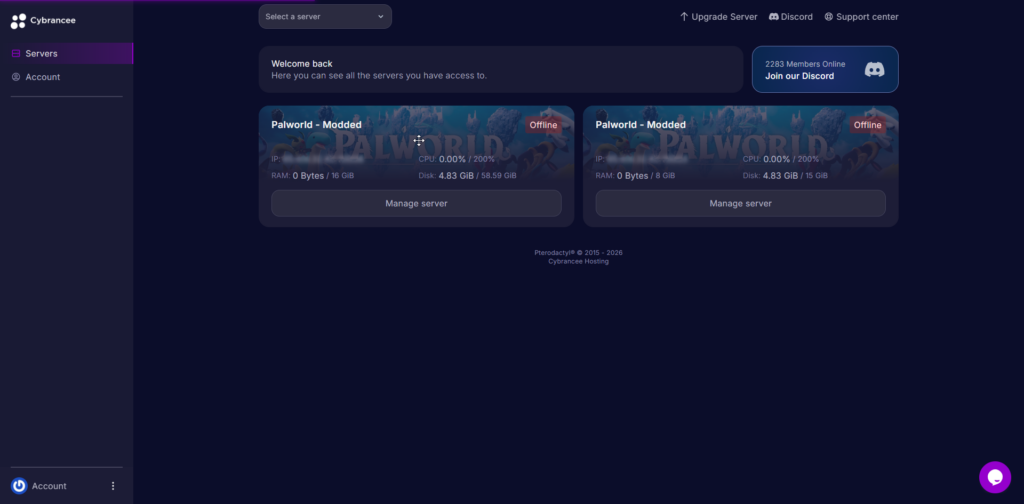
When you first log in, you’ll see a list of all your active servers.
- Server Status at a Glance: Each card shows if your server is Online or Offline, its IP Address, and live resource usage (CPU, RAM, Disk).
- Manage Server: Click this button on your Palworld card to enter the full dashboard.
3. The Main Dashboard

This is your “home base” for a specific server.
- 1. Quick Action Buttons: Large Start, Restart, and Stop buttons at the top right allow for instant control.
- 2. SFTP Details: Need to upload a lot of mods or a large save file? Your SFTP Address and Username are listed right here. You can even click ‘Launch SFTP‘ to connect instantly.
- 3. Server Info: Quickly find your Server IP, Port, and Node ID—vital info for when your friends want to join.
Navigation Sidebar
On the left-hand side, you have access to every tool needed to customise your experience:
- Console: View the “Live Log” to see player joins and server errors.
- Files: The built-in file explorer for editing
PalWorldSettings.inior managing world saves. - Databases: For advanced users needing to manage external data.
- Backups: Create manual snapshots of your world before making big changes.
- Schedules: Automate your server restarts to maintain peak performance.
Palworld Server Hosting
Starts at $9.99

Table of Contents